


Before we begin
Section titled “Before we begin”Before diving into this module’s exercises, it would be good if you can review and familiarize yourself with styling layers and making maps. You can also look at advanced styling and symbology techniques.
For exercises in this module, you will use the bnhr_qgis-architects-planners-urban-002.gpkg inside the data subfolder in the BNHR_QGIS-for-Architects-Planners-and-Urban-Practitioners folder.
This geopackage contains all the data and projects associated with the exercises.
Multi-variable symbologies
Section titled “Multi-variable symbologies”1.1. Bivariate choropleth map of barangays showing population density and annual population rate
Section titled “1.1. Bivariate choropleth map of barangays showing population density and annual population rate”Level: Intermediate
For our training participants, you can load the completed/styled layer by loading the bivariate-choropleth project found inside bnhr_qgis-architects-planners-urban-002.gpkg.
What we want to achieve
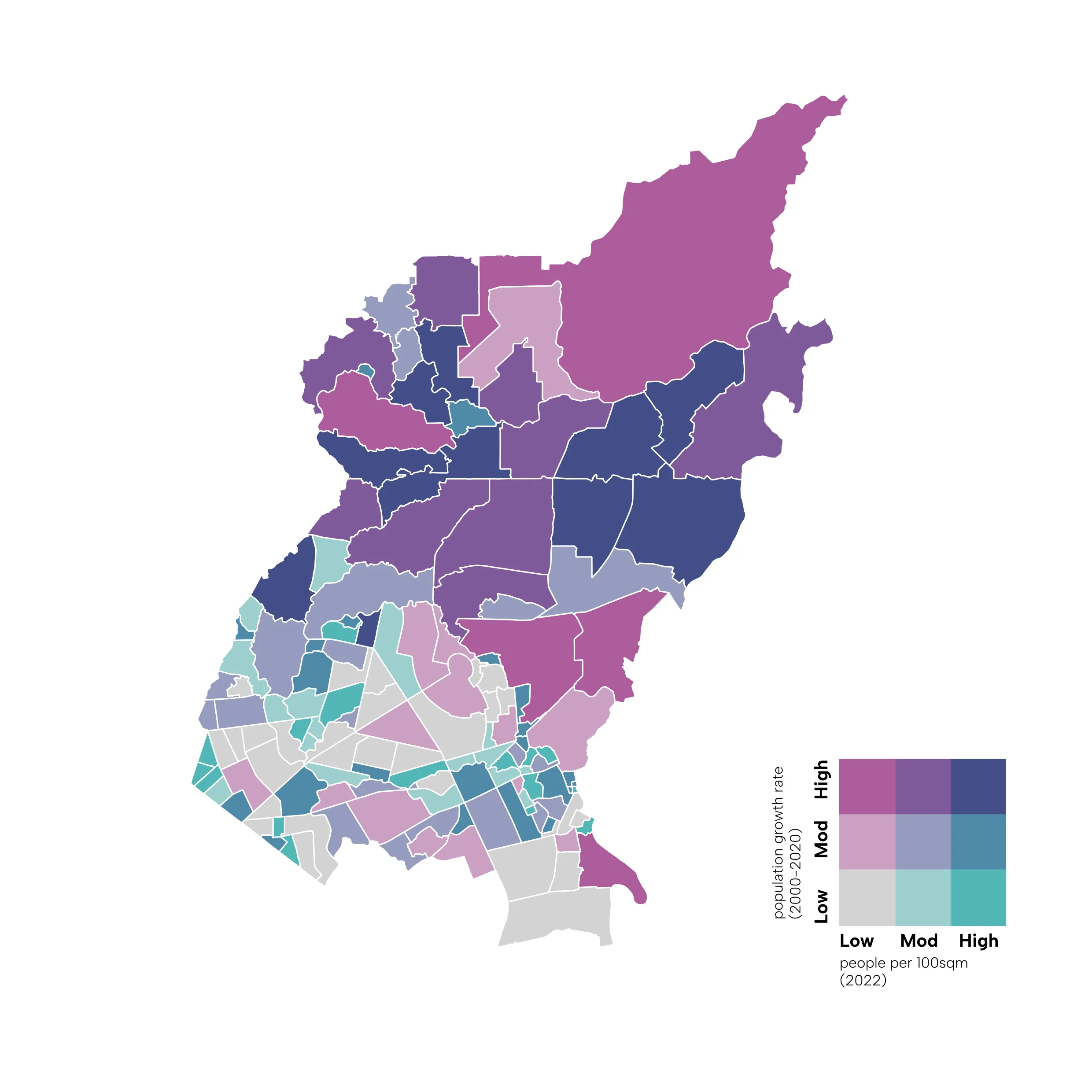
Section titled “What we want to achieve”- A map of Quezon City barangays showing both the population growth rate (2000 to 2020) and the people per 100 square meters.
What we have
Section titled “What we have”- adm_brgy_quezon_city_pop2000_2020 - the barangay-level admin boundary data generated from a previous exercise with population from 2000 to 2020
Relevant QGIS knowledge/skills
Section titled “Relevant QGIS knowledge/skills”- Load the adm_brgy_quezon_city_pop2000_2020 layer. Make sure that it already has the fields for population from 2000 to 2020.
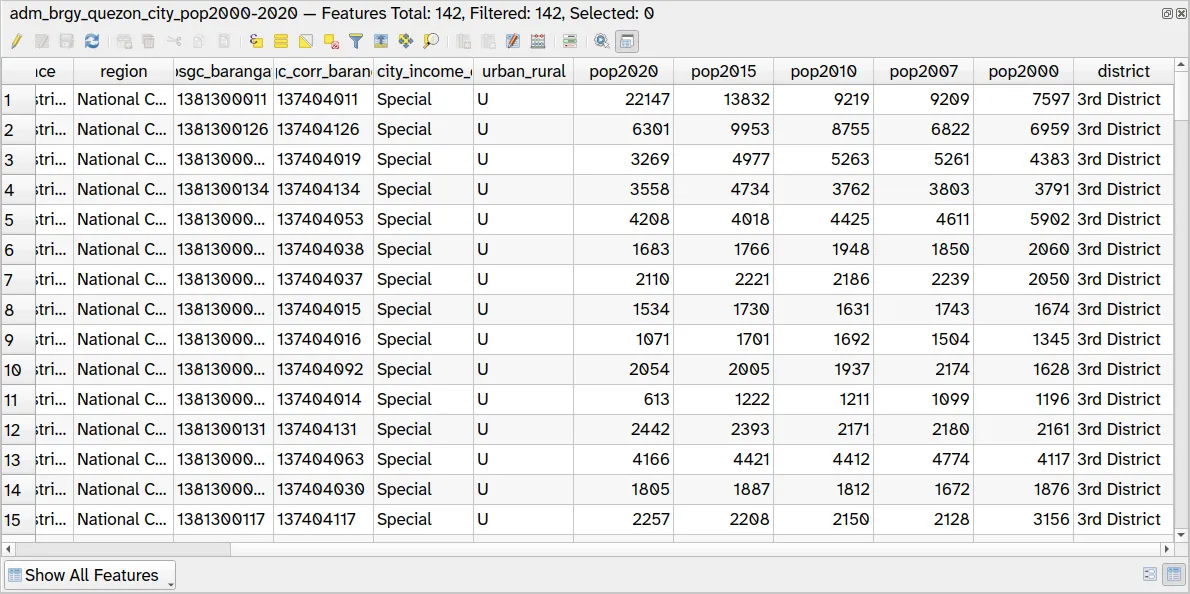
- Duplicate the adm_brgy_quezon_city_pop2000_2020 layer. Since we’ll be creating a bivariate choropleth map using blending modes, we need 2 vector layers to show. In this case, we’ll show the annual population growth from 2000-2020 and the number of people per 100sqm in the barangay. Name the two layers brgy_rate and brgy_popden.
To duplicate a layer, right-click on the layer ‣ Duplicate layer.
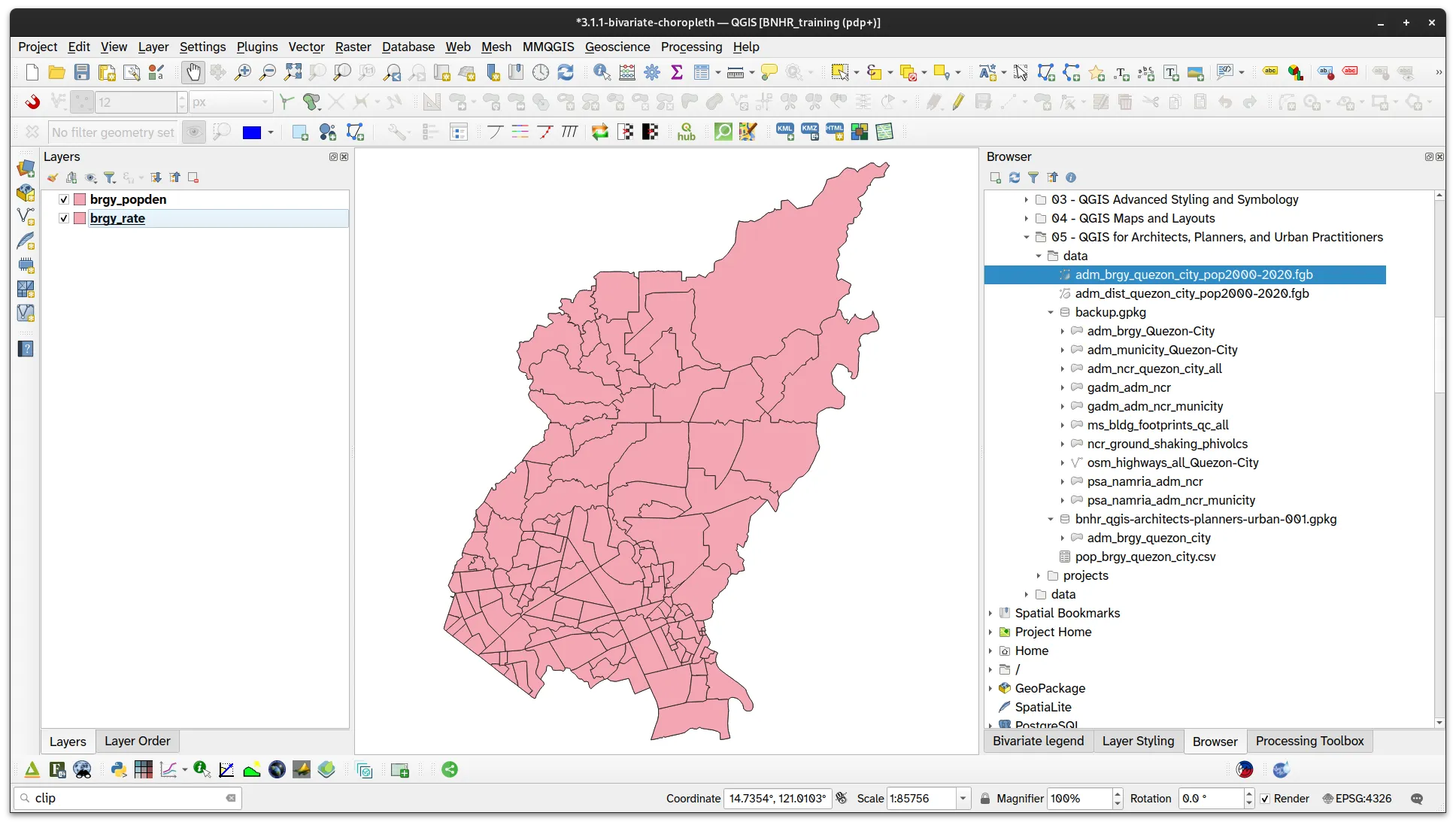
-
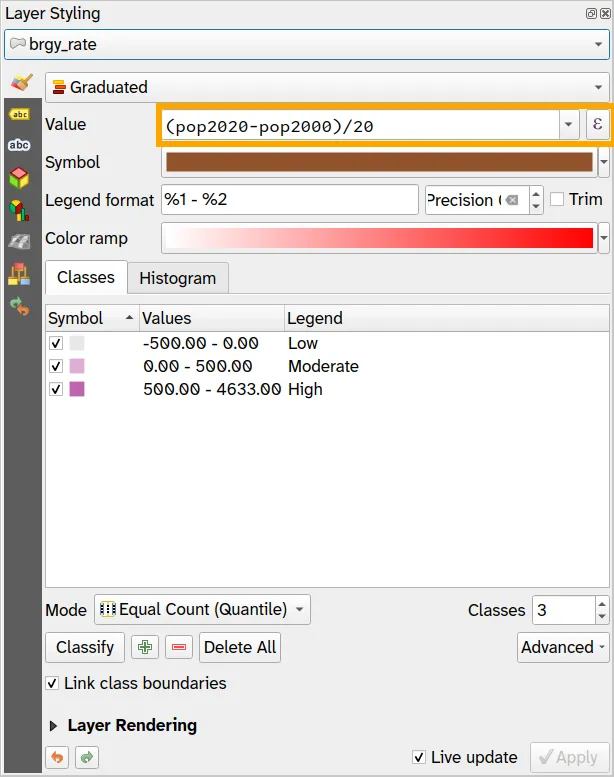
Next, we make a choropleth map for the brgy_rate layer using a Graduated symbology using the following parameters.
- Symbology: Graduated
- Value:
(pop2020-pop2000)/20
- Classes
- Low
- Color: #e8e8e8
- Values: -500.00 - 0.00
- Moderate
- Color: #dfb0d6
- Values: 0.00 - 500.00
- High
- Color: #be64ac
- Values: 500.00 – 5000.00
- Low
Notice the Expression icon ( ) to the right of the Value parameter.
This means that we can directly use the Expression computing for the annual population growth from 2000 to 2020 ((pop2020 - pop2000)/20) without needing to create a new field on the layer.
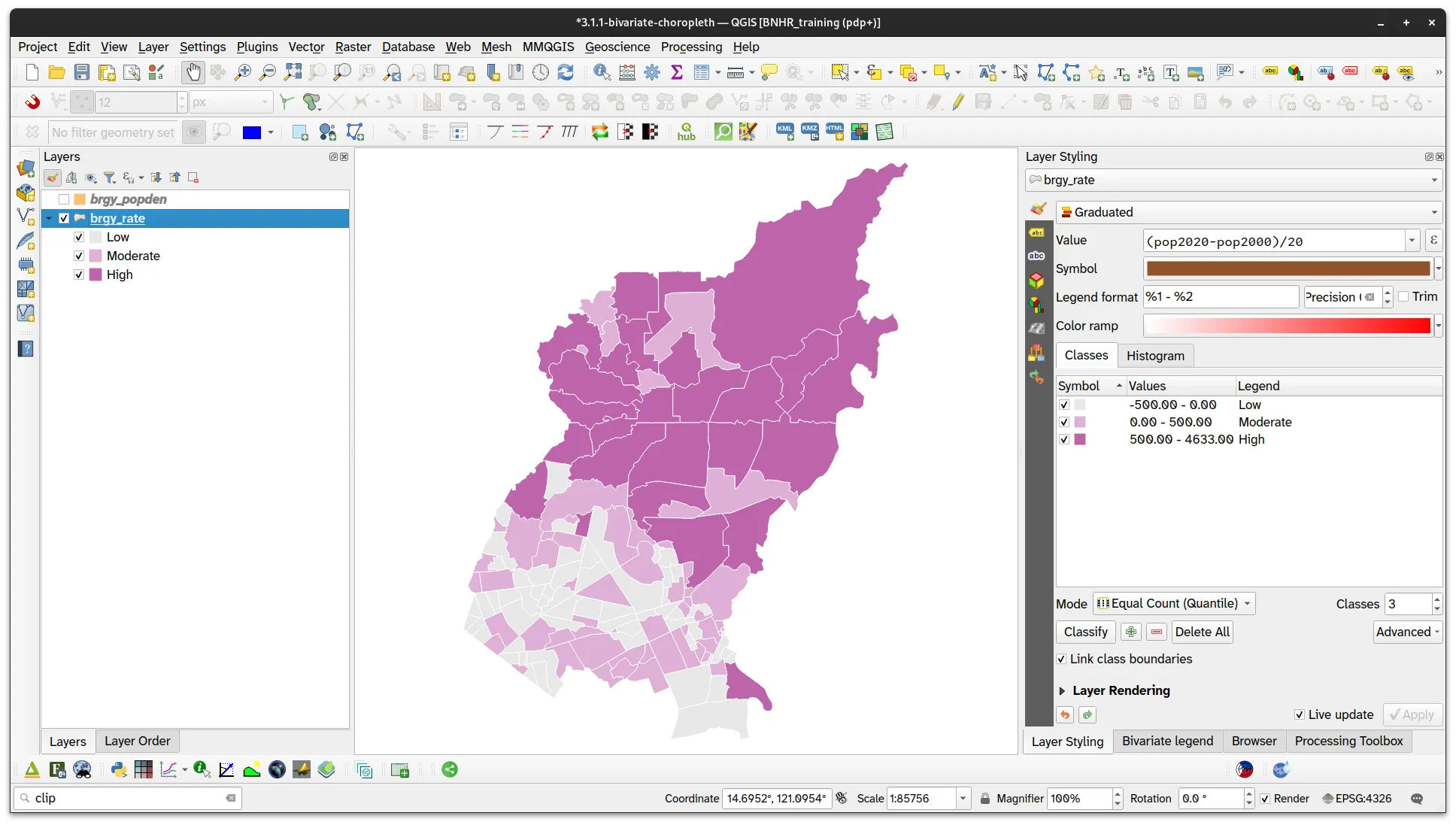
- Your brgy_rate layer should look like:
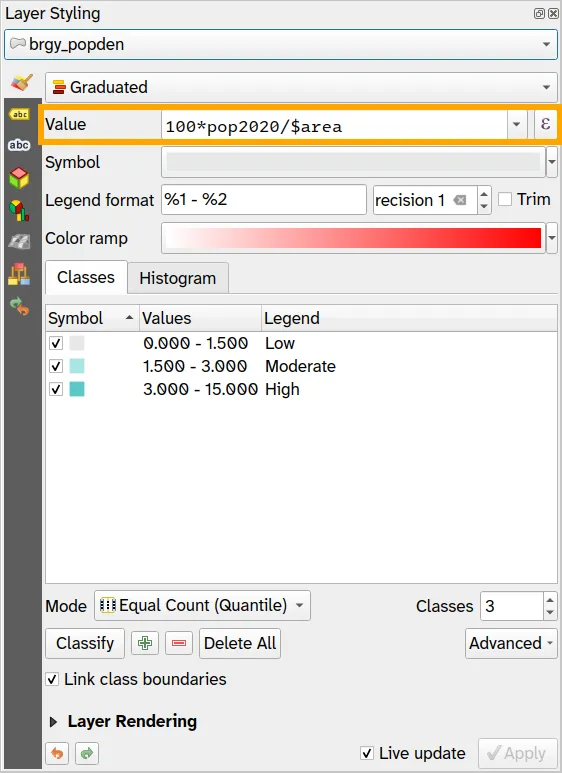
- Do the same for the brgy_popden layer but our parameters will be:
- Symbology: Graduated
- Value:
100*pop2020/$area
- Classes
- Low
- Color: #e8e8e8
- Values: 0.000 - 1.500
- Moderate
- Color: #ace4e4
- Values: 1.500 - 3.000
- High
- Color: #5ac8c8
- Values: 3.000 - 15.000
- Low
- Your brgy_popden layer should look like:
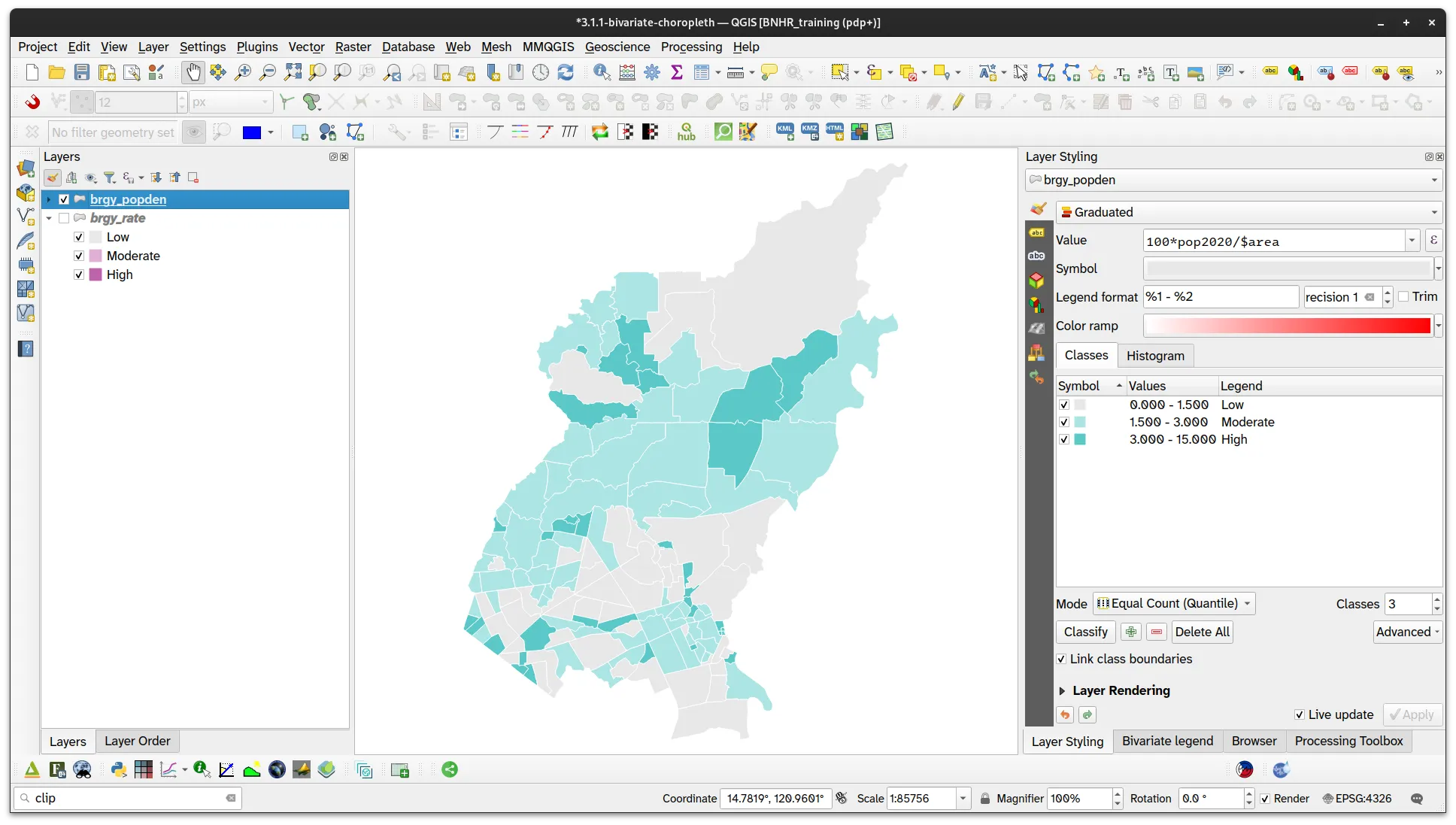
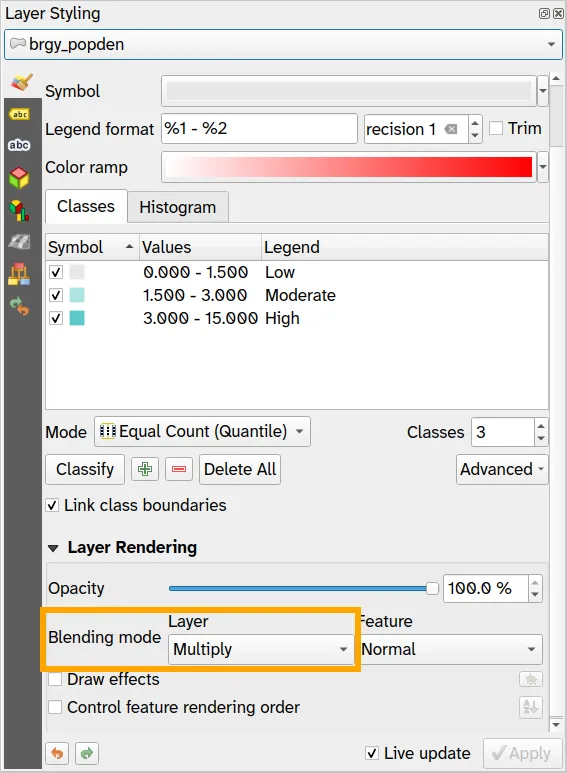
- Now that you have the two choropleth maps, create the bivariate choropleth effect by changing the blending mode of the top layer (brgy_popden) to Multiply.
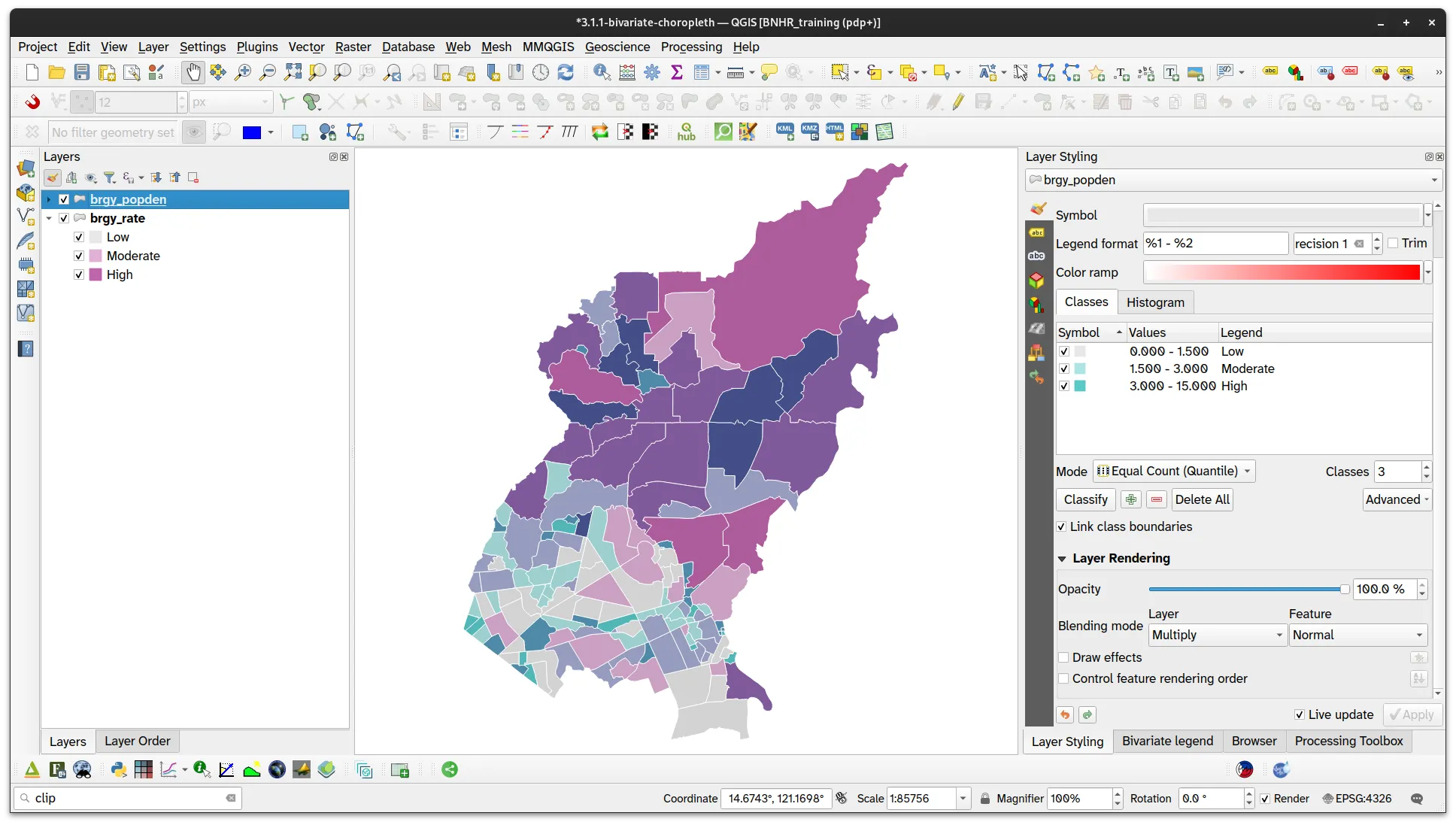
You can use the Bivariate legend plugin to create a legend for the map you created.
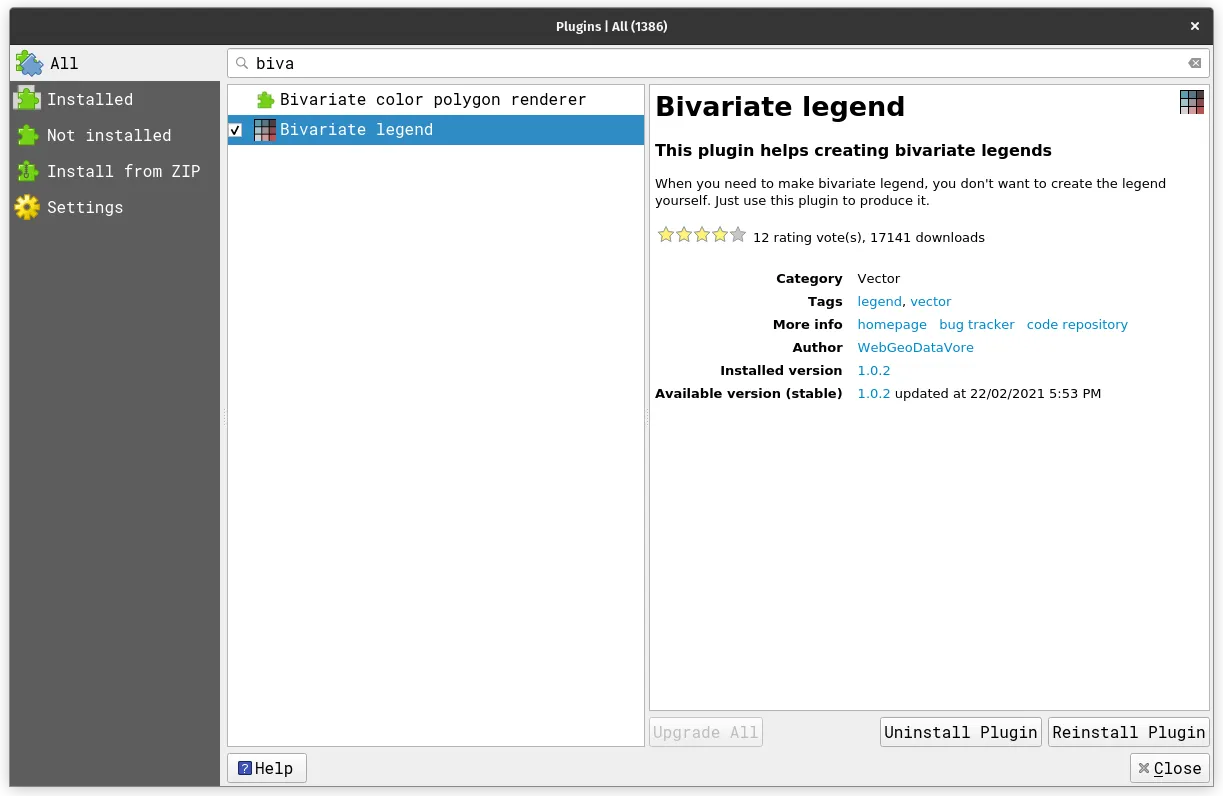
There’s a plugin called the Bivariate color polygon renderer that adds an implementation of a bivariate color renderer directly for a polygon layer’s styling options.
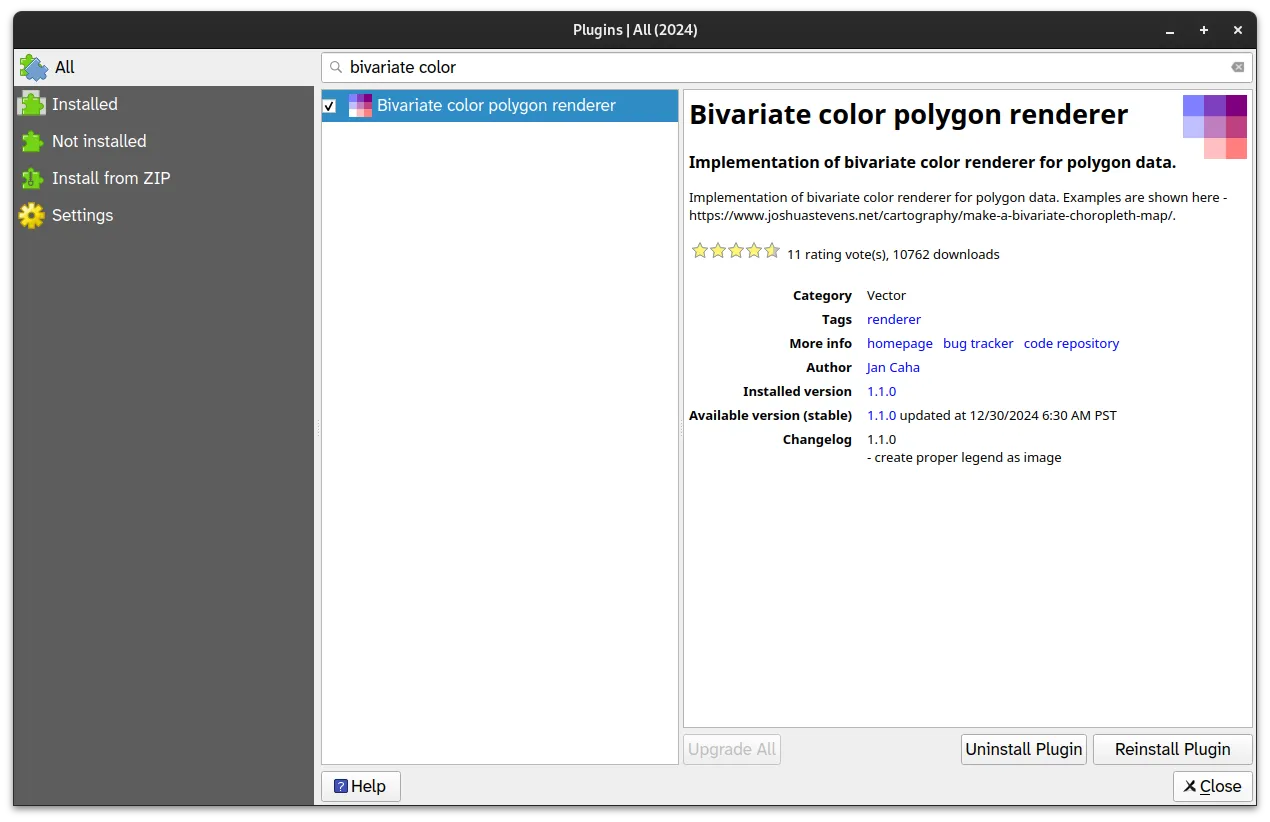
Try to use this plugin and check what the pros and cons are of this approach vs the approach we took.
1.2. Using both size and color to communicate information about the districts
Section titled “1.2. Using both size and color to communicate information about the districts”Level: Intermediate
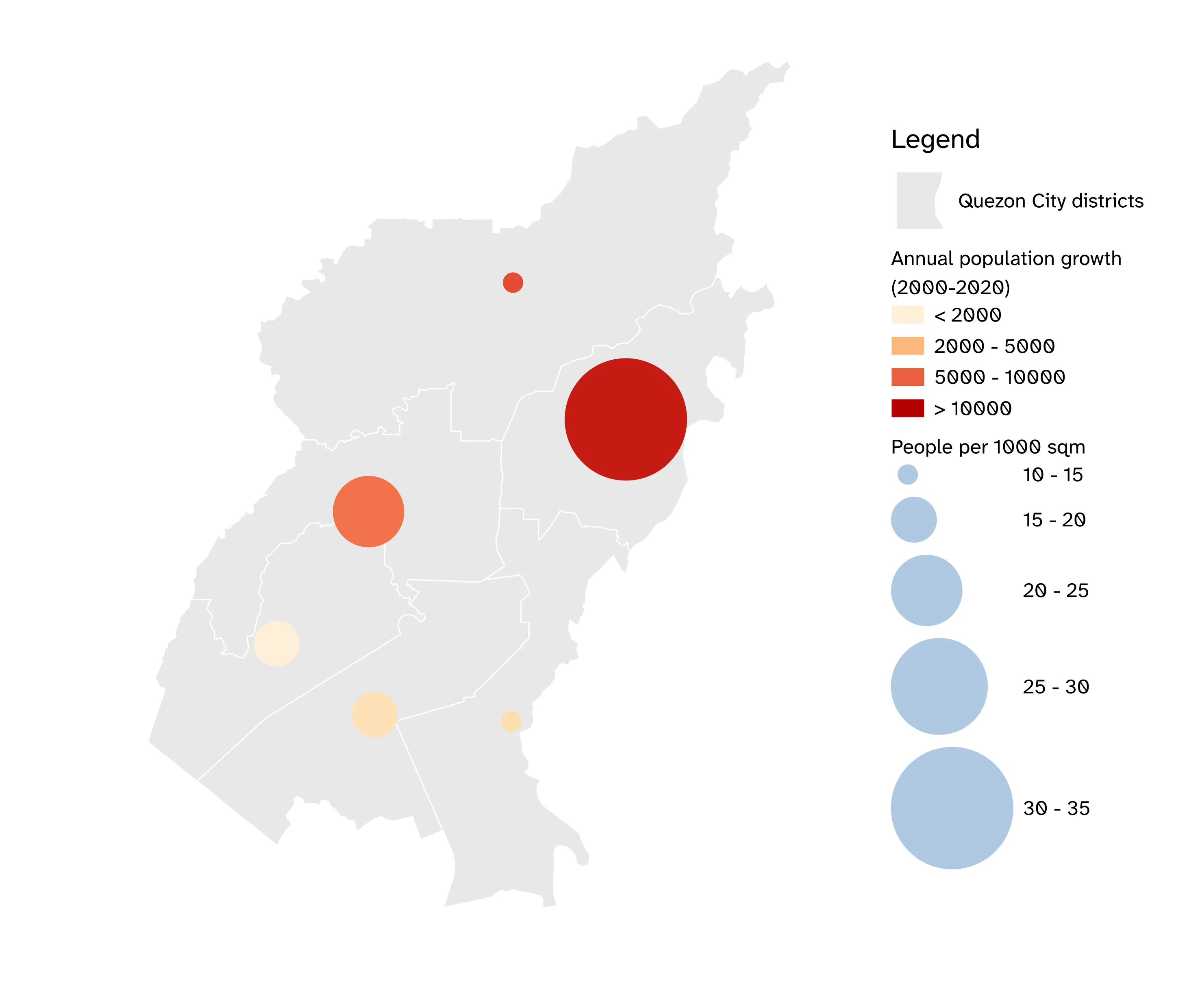
For our training participants, you can load the completed/styled layer by loading the size-and-color project found inside bnhr_qgis-architects-planners-urban-002.gpkg.
What we want to achieve
Section titled “What we want to achieve”- Use circles to show population information about districts in Quezon City where the size pertains to the people per 1000 sqm and the color indicates the annual population growth from 2000 to 2020.
What we have
Section titled “What we have”- adm_dist_quezon_city_pop2000_2020 - the district-level admin boundary data generated from a previous exercise with population from 2000 to 2020
Relevant QGIS knowledge/skills
Section titled “Relevant QGIS knowledge/skills”As with most things in QGIS, there are several ways to approach this problem in order to arrive at the same outcome. Here, I will show two options:
- A straightforward option using geometry generators and data-defined overrides that do not require the creation of a new field or a new layer.
- An option that requires creating a new field (pop_per_1000sqm) and a centroid layer then applying a graduated symbology with data-defined overrides.
Option 1 - Geometry generator approach
Section titled “Option 1 - Geometry generator approach”- Load the adm_dist_quezon_city_pop2000_2020 and duplicate the layer.
- Rename one base and apply a simple single symbol symbology.
- On the other layer, select Geometry Generator as its Symbol layer type.
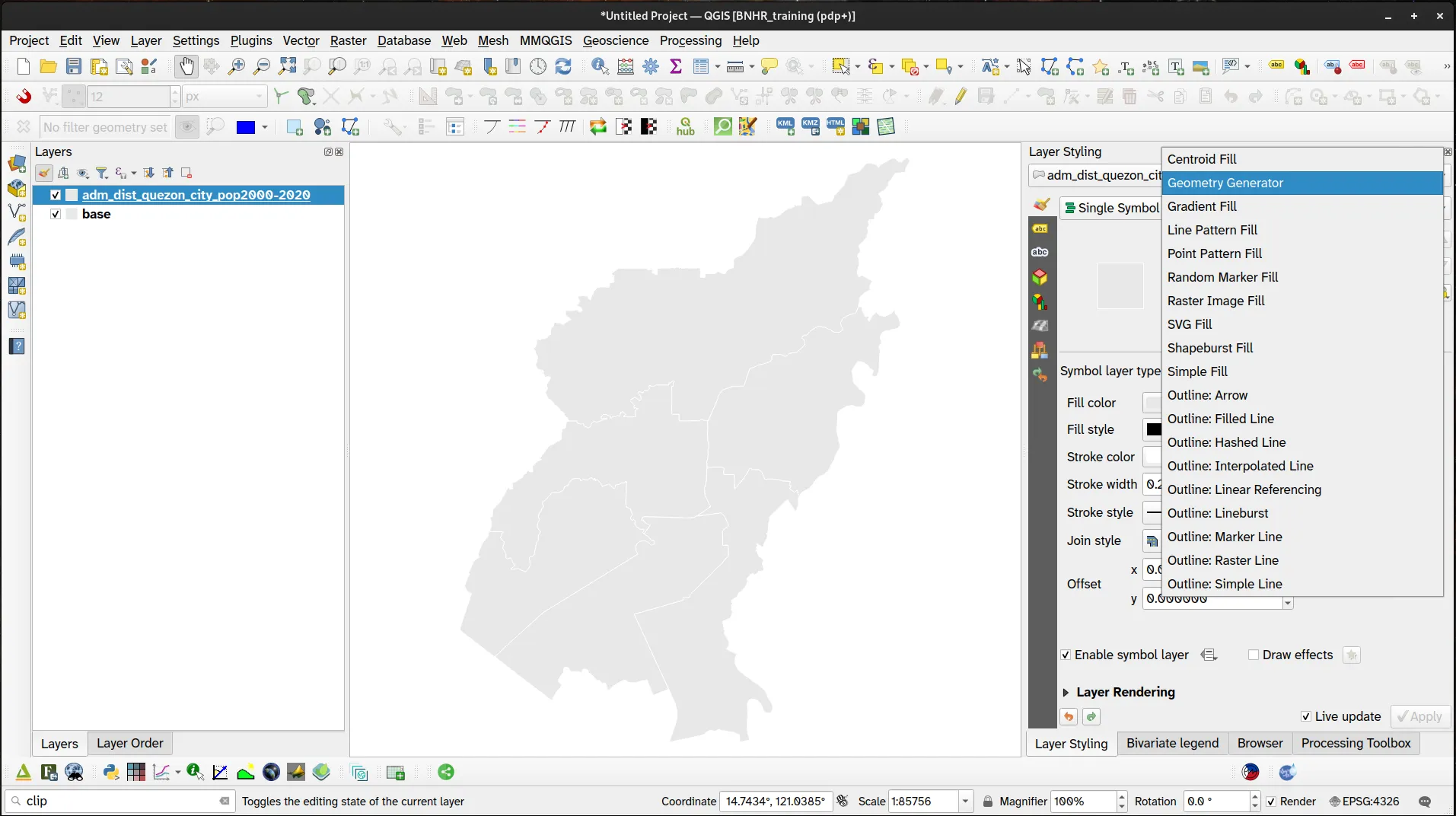
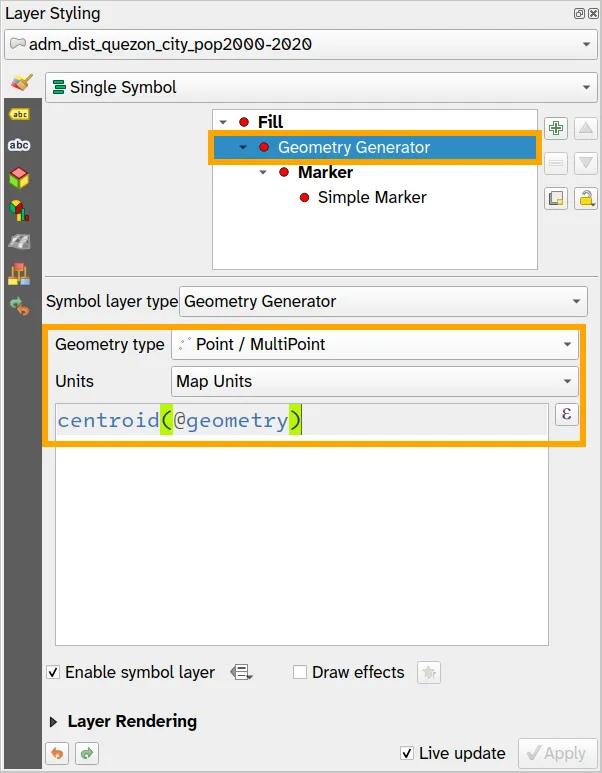
- Change the Geometry type to Point/MultiPoint and use the following expression to generate a centroid:
centroid(@geometry)
- On the Simple Marker, use the Assistant to override the Size parameter.
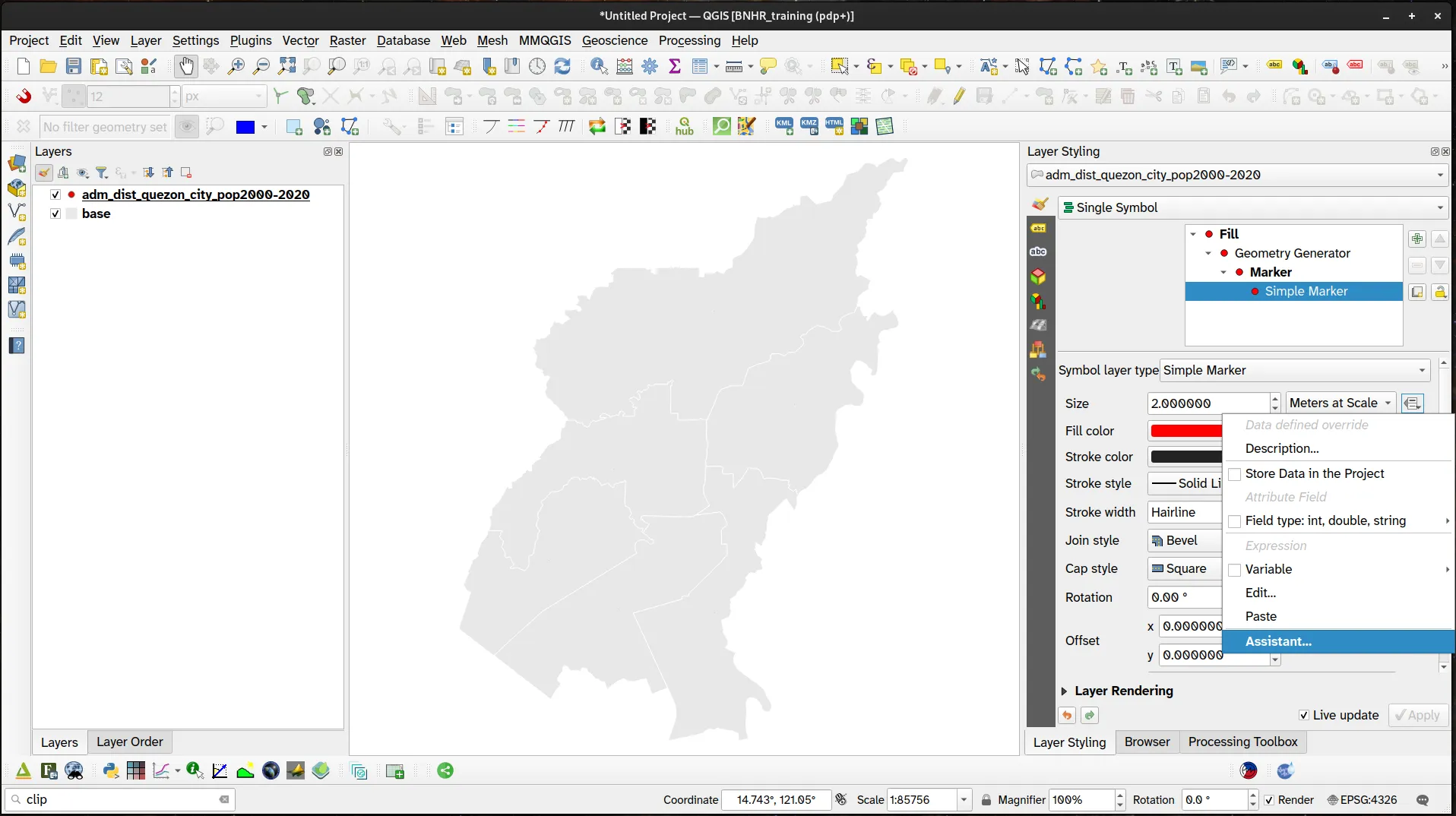
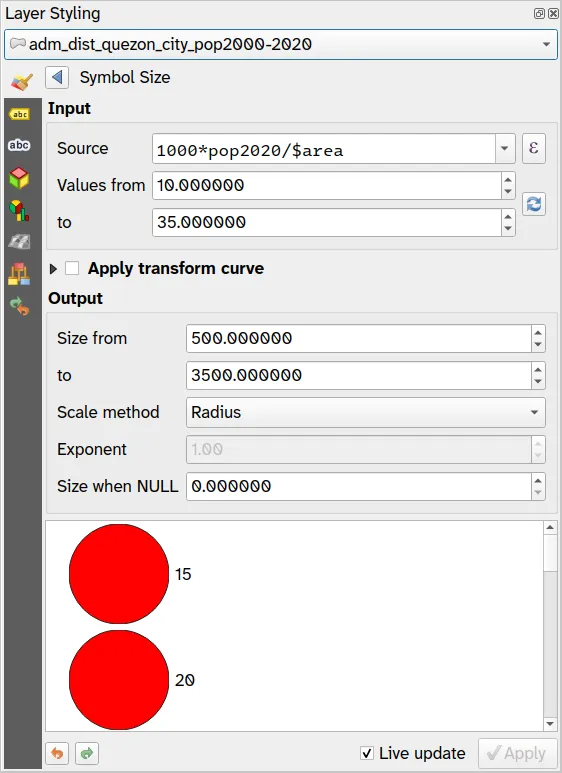
- Use the following parameters:
- Source
1000*pop2020/$area
- Values from 10 to 35
- Output
- Size from 500
- to 3500
- Source
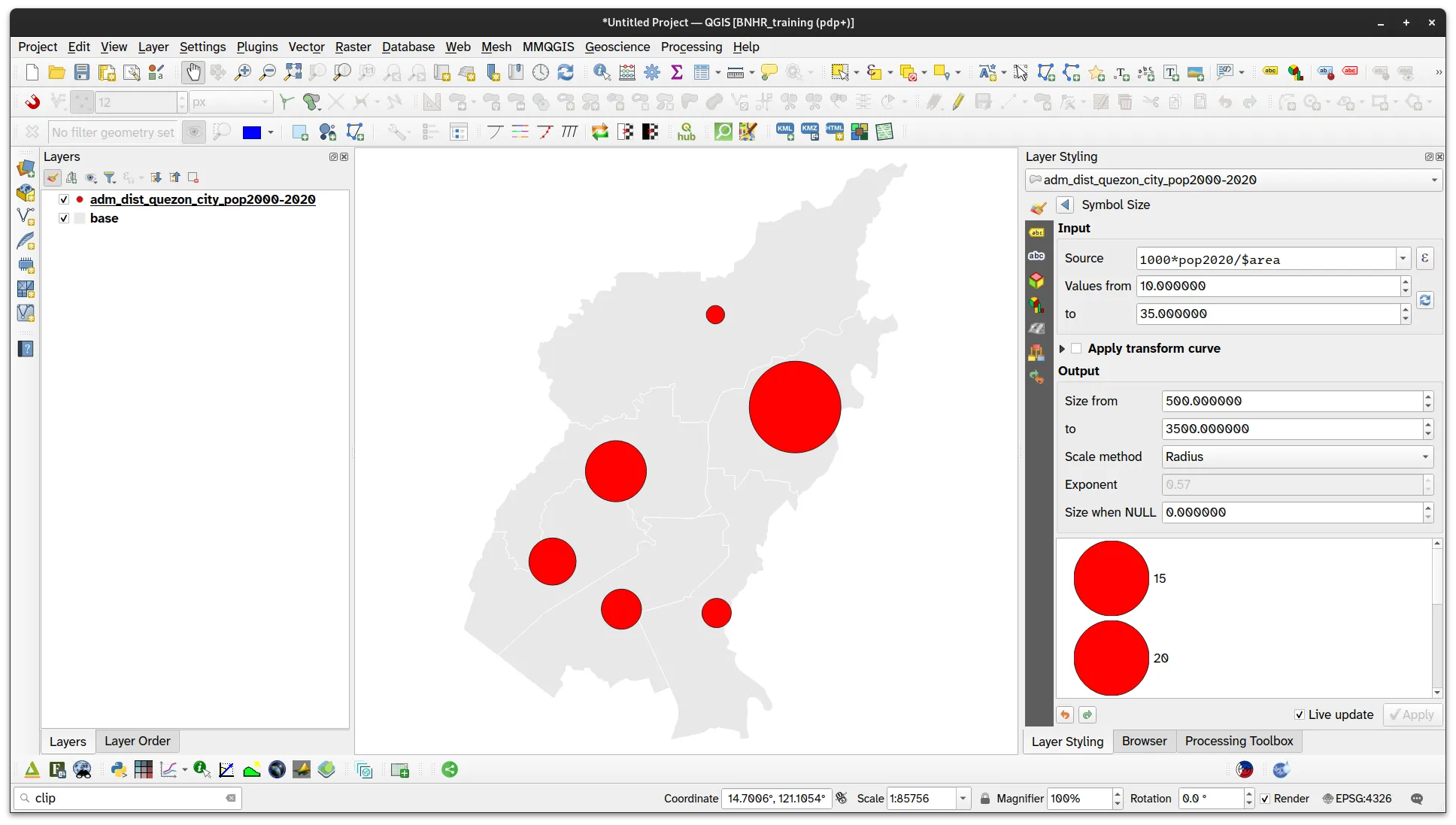
- Your layer should now look like below:
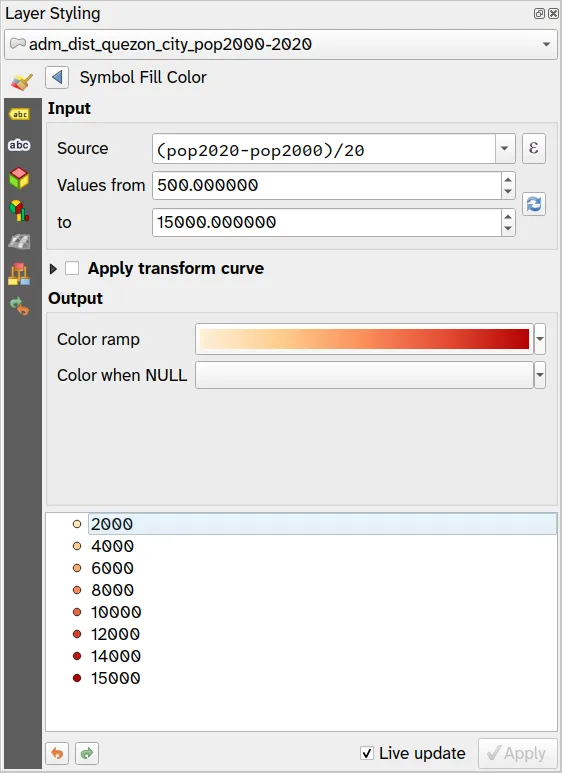
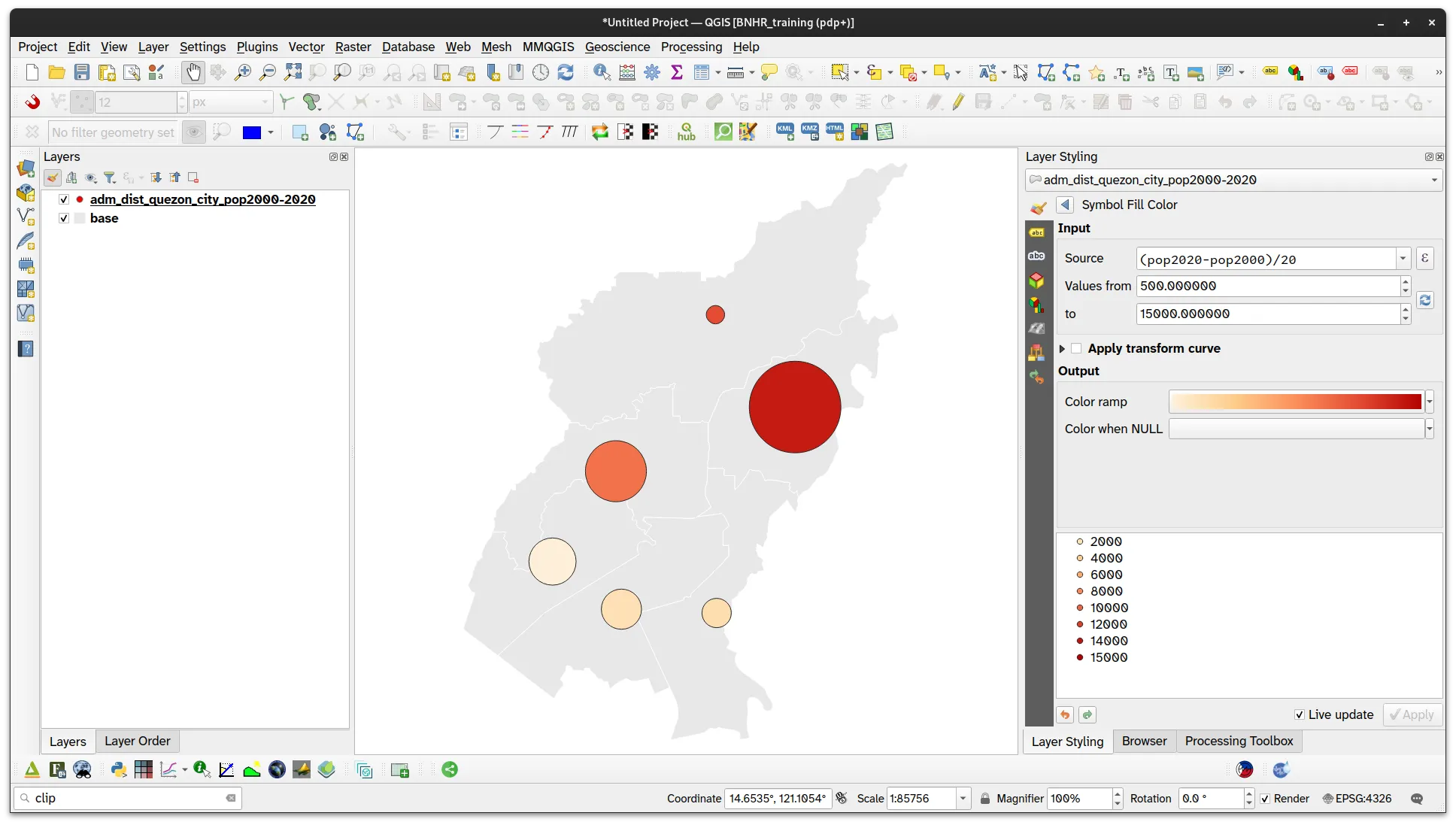
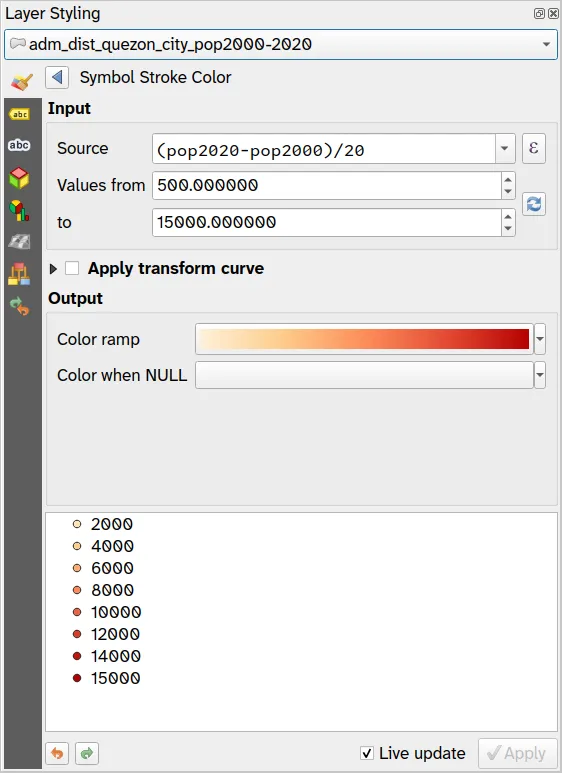
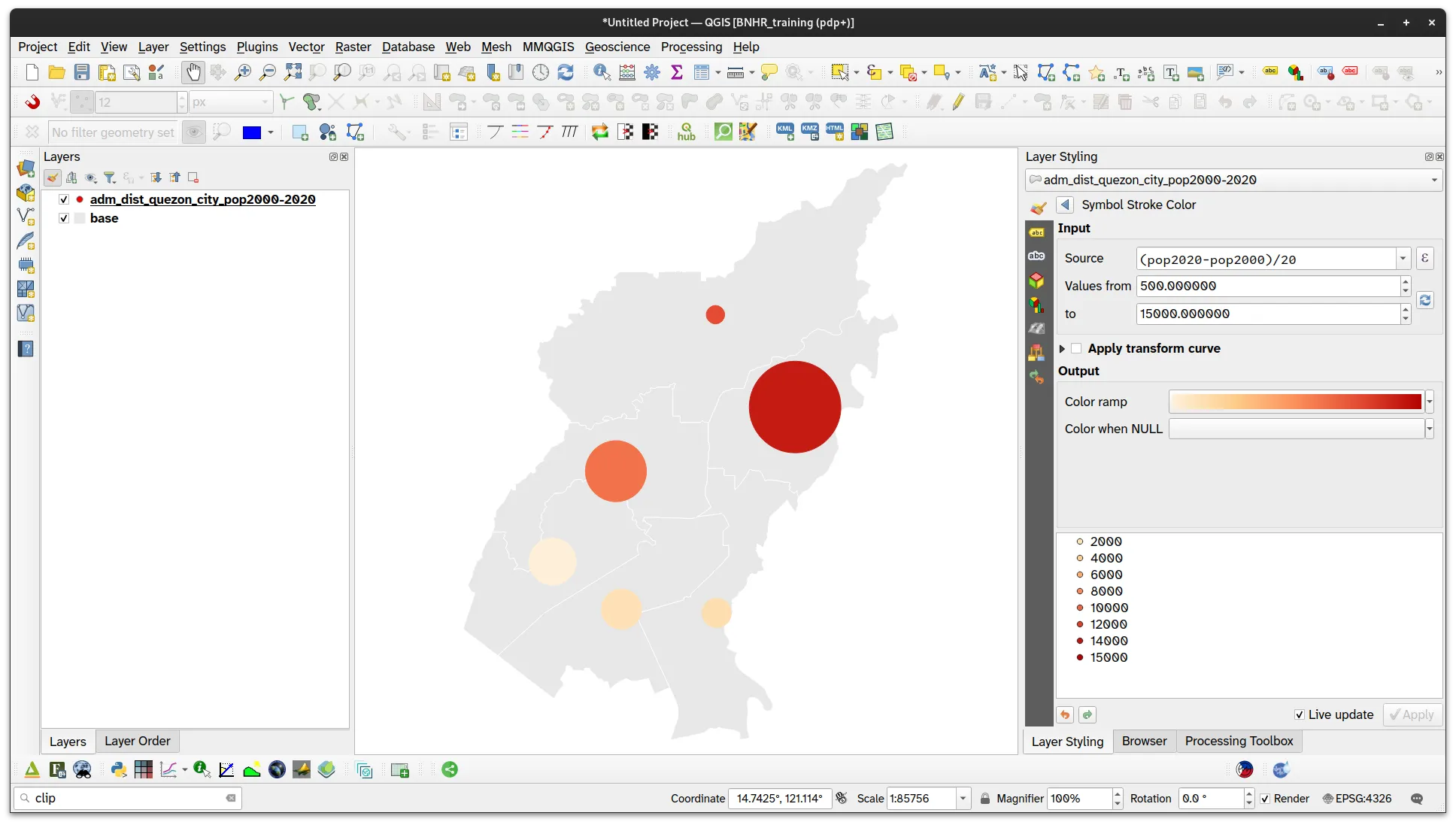
- Next, let’s use the Assistant to override the Symbol Fill Color and Symbol Stroke Color parameters. Use the same parameters for both:
- Source:
(pop2020-pop2000)/20
- Values from: 500 to 15000
- Source:
Option 2 - Centroid approach
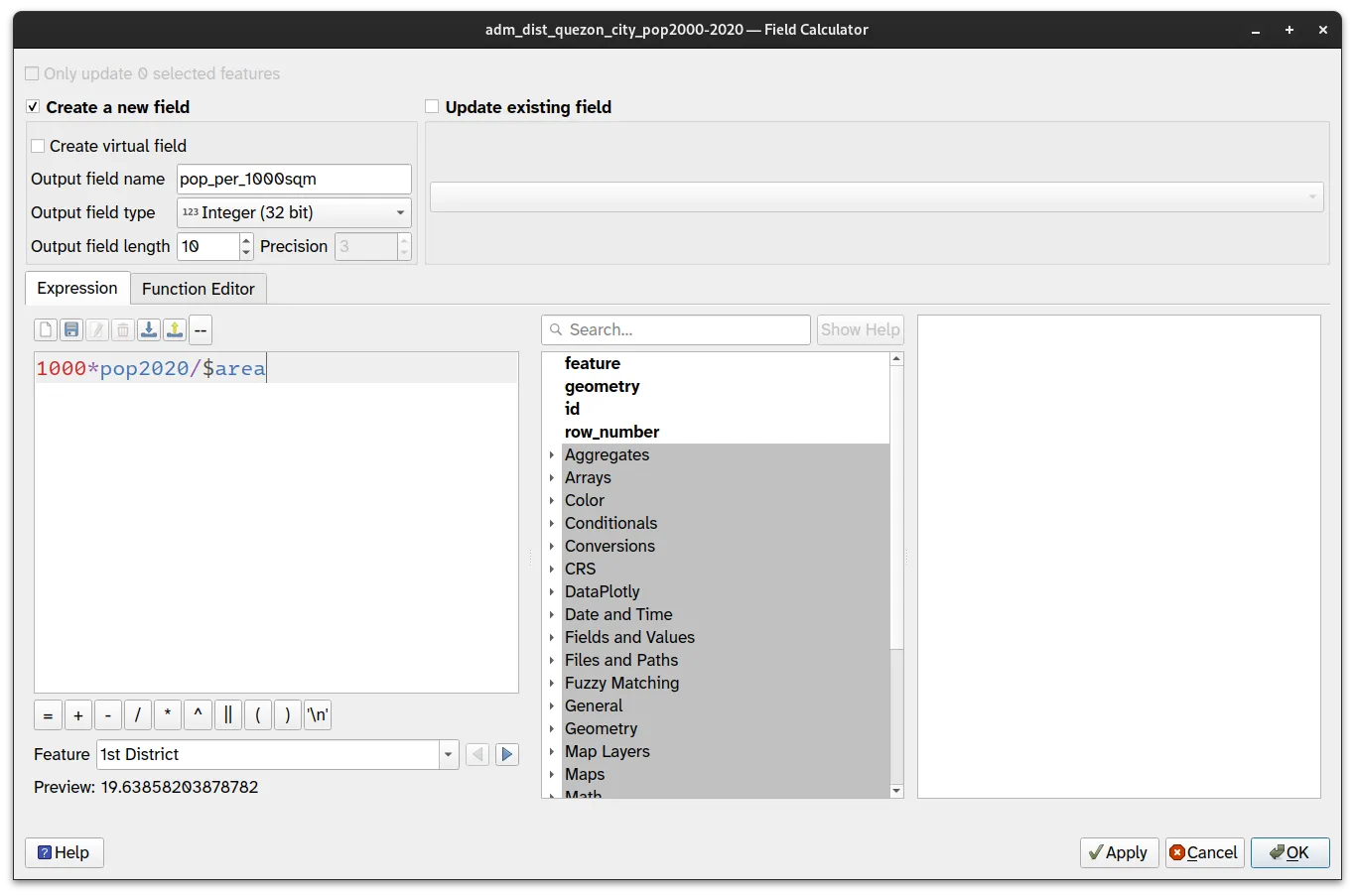
Section titled “Option 2 - Centroid approach”- Add a new field to the adm_dist_quezon_city_pop2000_2020 layer to hold the number of people per 1000 square meters using the following expression:
1000*pop2020/$area
- Run the Centroid processing algorithm to create a new point layer (centroid) based on adm_dist_quezon_city_pop2000_2020.
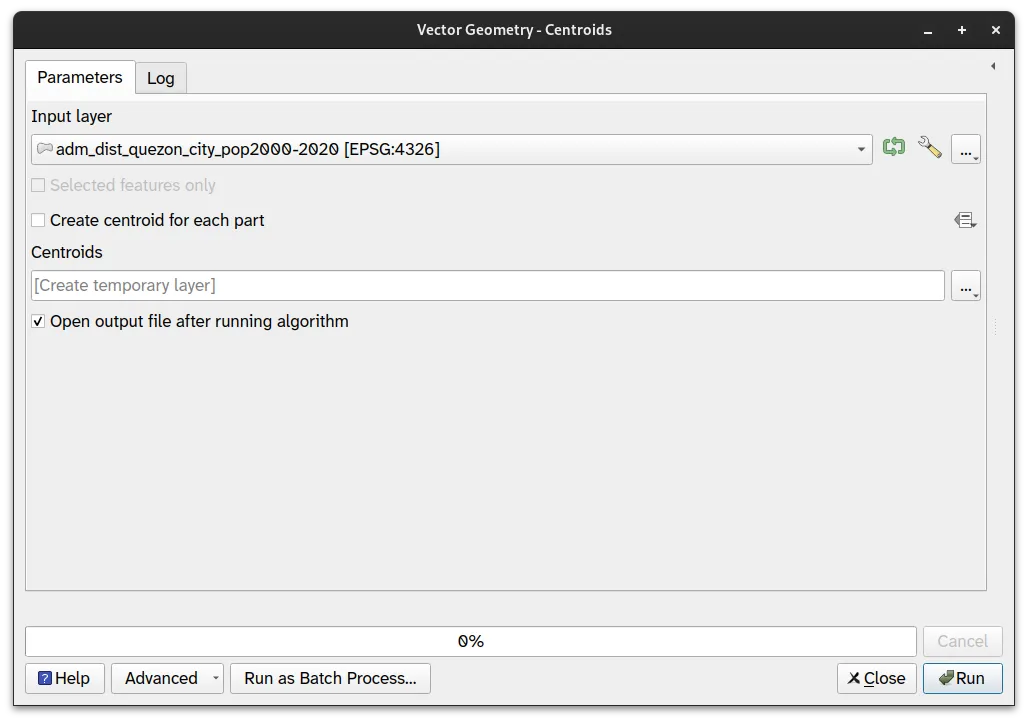
- A new layer (Centroid) should be created.
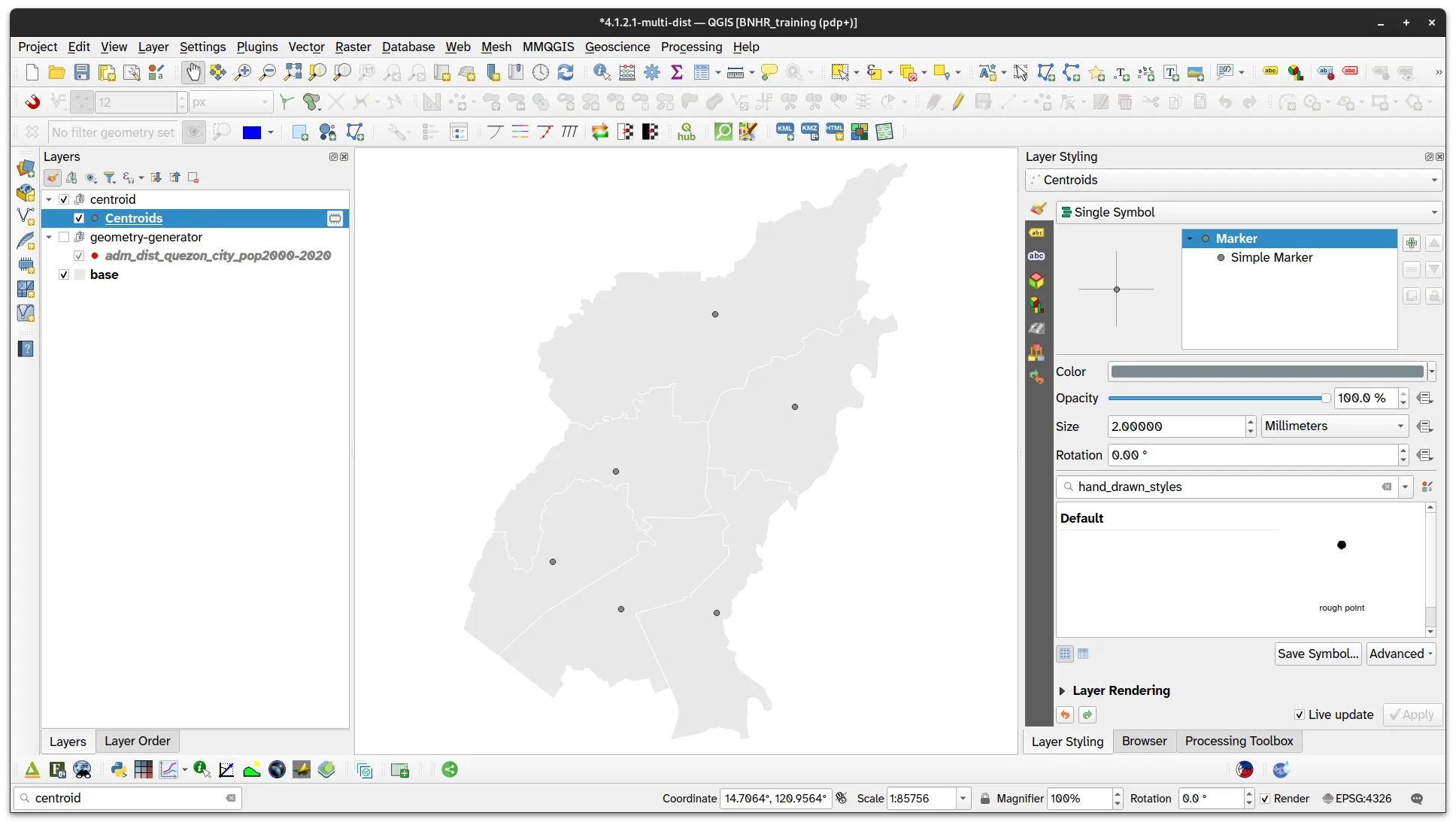
- Apply a Graduated symbology and use the following parameters:
- Value: pop_per_1000sqm
- Method: Size
- Size from: 500 to 3500 Map Units
- Classes:
- 10 - 15
- 15 - 20
- 20 - 25
- 25 - 30
- 30 - 35
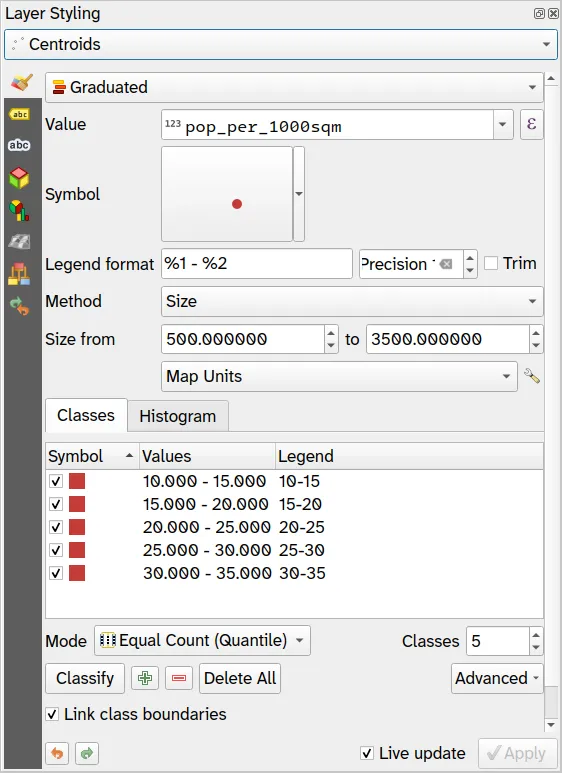
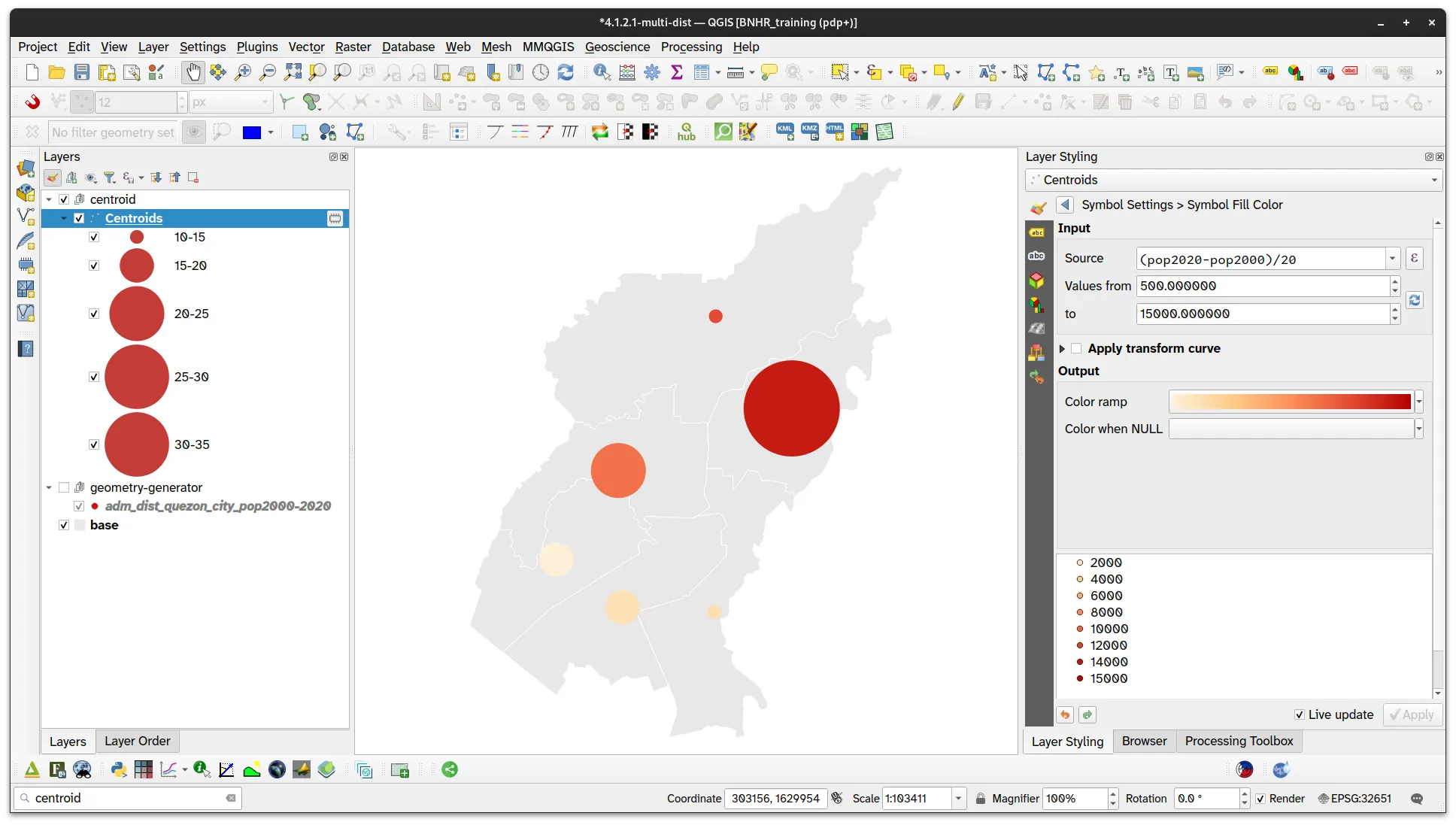
- Your Centroid layer should look like below:
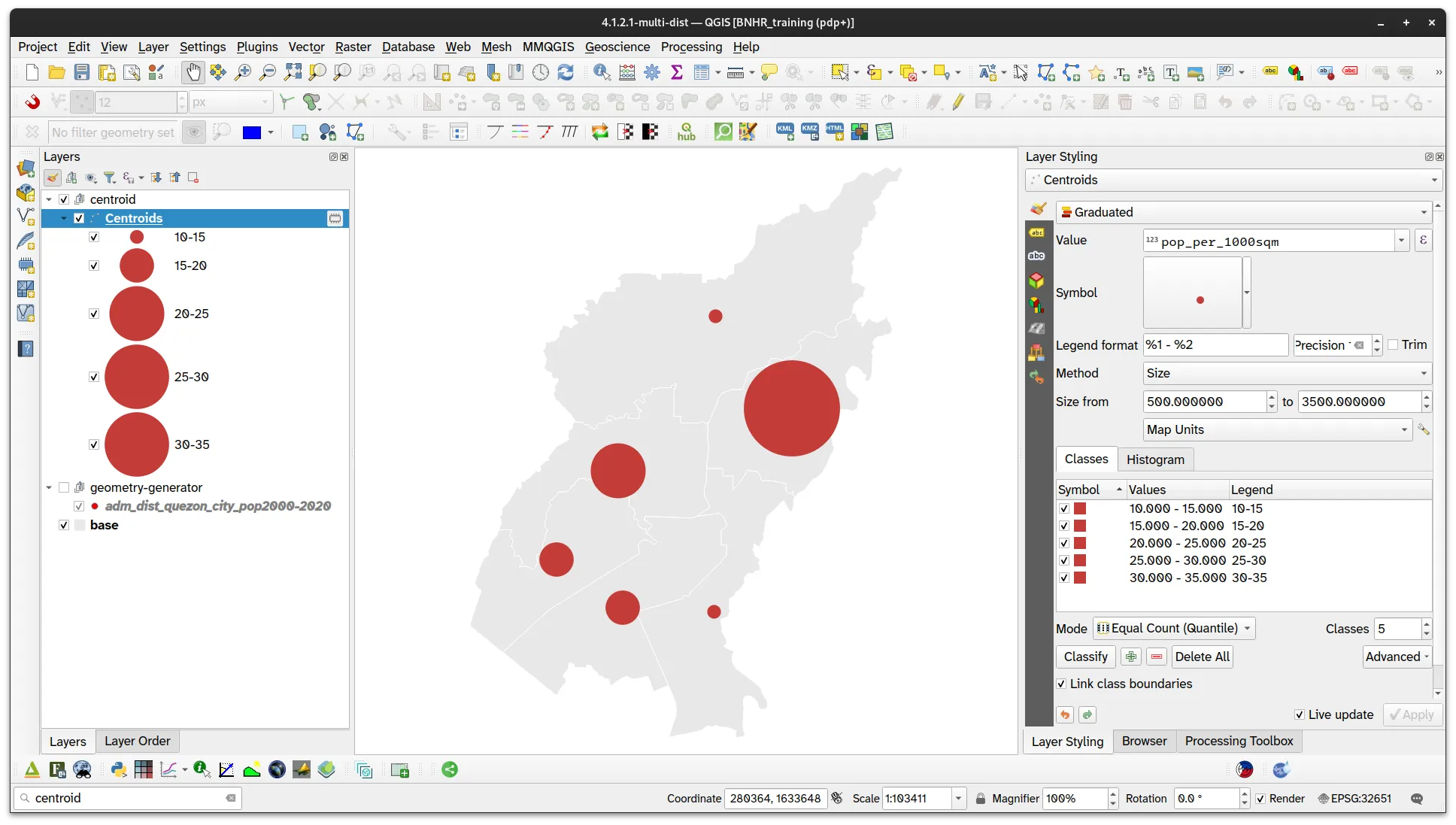
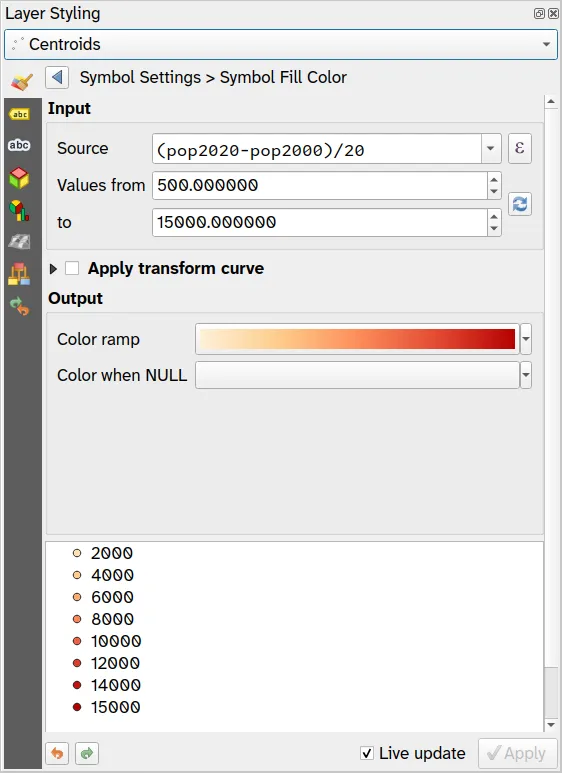
- Use the Assistant to override the Symbol Fill Color with the following parameters:
- Source:
(pop2020-pop2000)/20
- Values from: 500 to 15000
- Source:
- Your layer should look like below:
How will you add a legend on the print layout to reflect this multi-variable symbology?
Rule-based and scale-dependent symbologies
Section titled “Rule-based and scale-dependent symbologies”2.1. Styling roads and land-use using rules and symbol levels
Section titled “2.1. Styling roads and land-use using rules and symbol levels”Level: Intermediate
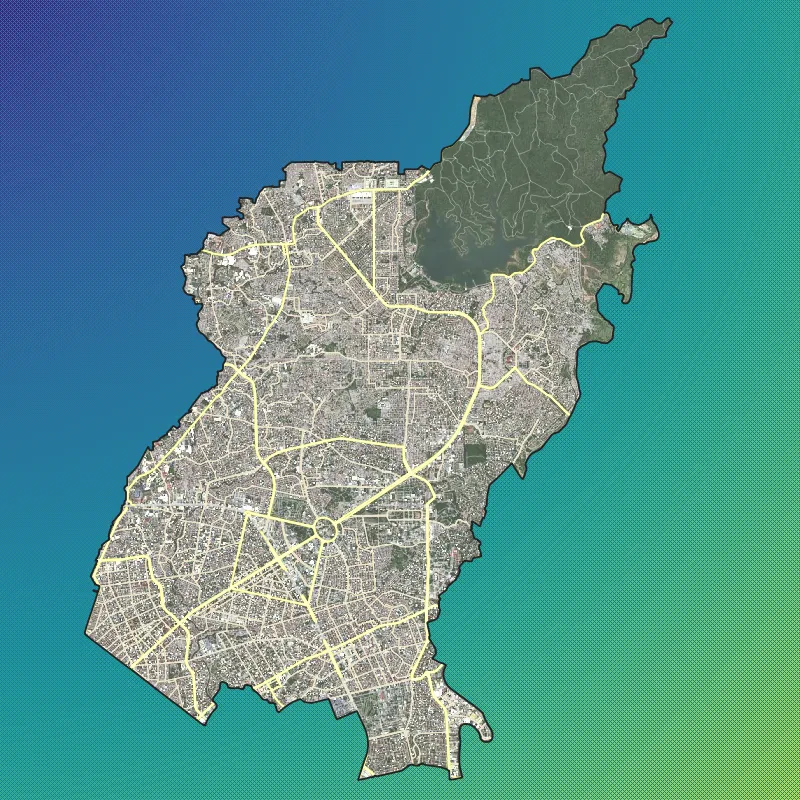
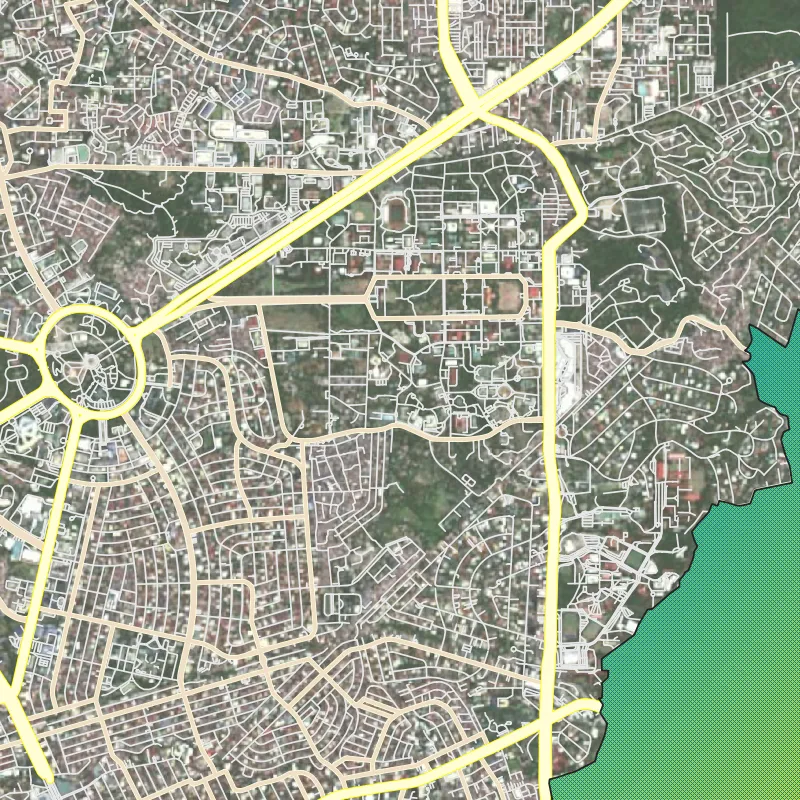
For our training participants, you can load the completed/styled layer by loading the rules-and-symbol-levels project found inside bnhr_qgis-architects-planners-urban-002.gpkg.
What we want to achieve
Section titled “What we want to achieve”- Style a road network similar in style to the ones we see in web maps by applying rule-based symbology on OpenStreetMap road data.
- Apply the same symbology to multiple landuse categories.
What we have
Section titled “What we have”- adm_municity_quezon_city
- osm_roads_quezon_city
- osm_landuse_quezon_city
- Other relevant layers:
- satellite image basemap
Relevant QGIS knowledge/skills
Section titled “Relevant QGIS knowledge/skills”- Load the adm_municity_quezon_city, osm_roads_quezon_city, and osm_landuse_quezon_city layers.
- Style adm_municity_quezon_city using Inverted Polygons and apply two fills (a Simple Fill and a Gradient Fill).
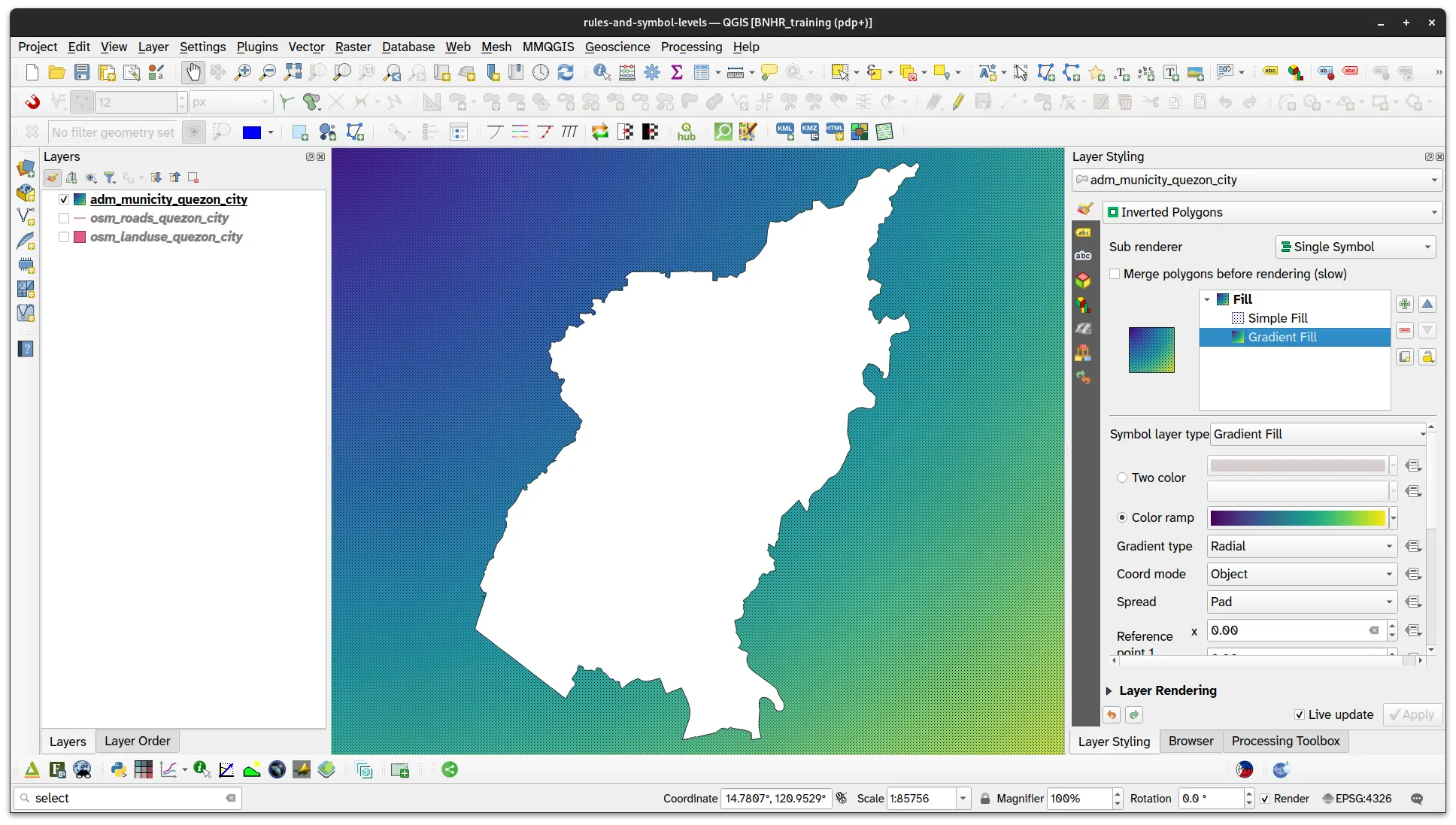
The Inverted Polygons symbology allows us to style the area outside the polygon instead of the polygon itself. In this case, this means that we’ll be styling all the area outside the adm_municity_quezon_city layer.
How should your layers be ordered so that the roads and land-use features outside of Quezon City isn’t shown on the map?
Apply rule-based symbology to the road network data
Section titled “Apply rule-based symbology to the road network data”- For the osm_roads_quezon_city layer, you will create 3 rules—one for primary roads, another for secondary roads, and a catch-all (for everything else). The rules will be:
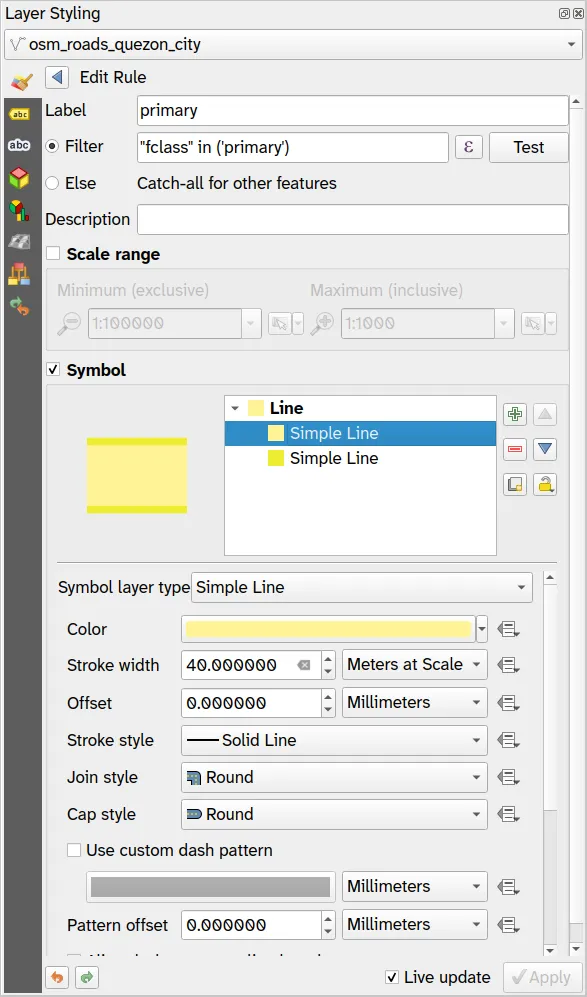
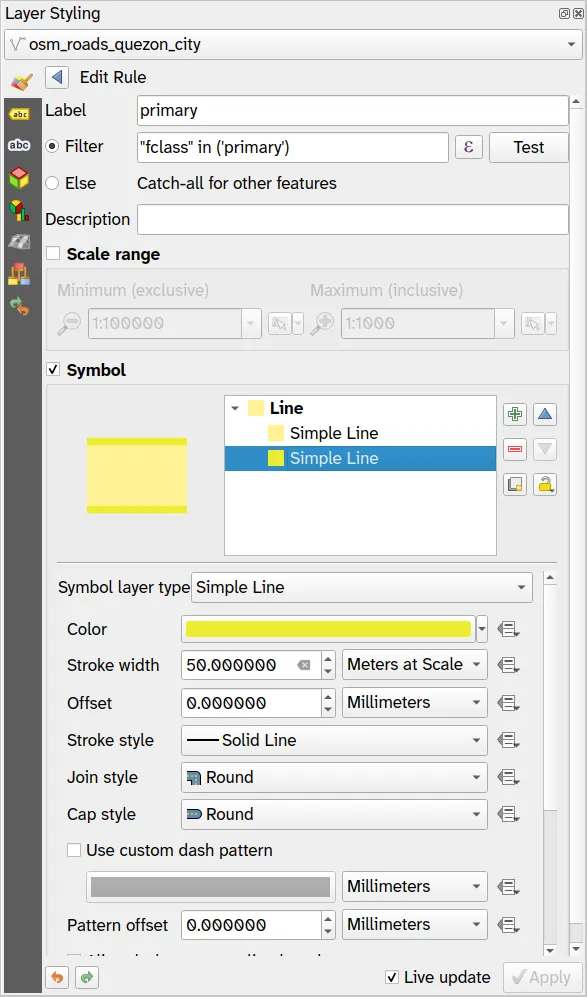
- Primary roads:
- Label: primary
- Filter:
"fclass" in ('primary')
- Symbol:
-
Simple Line (1)
- Color: #fff495
- Stroke width: 40 meters at scale
- Stroke style, Join style, Cap style: Solid line, Round, Round
-
Simple Line (2)
- Color: #ecec32
- Stroke width: 50 meters at scale
- Stroke style, Join style, Cap style: Solid line, Round, Round
-
- Primary roads:
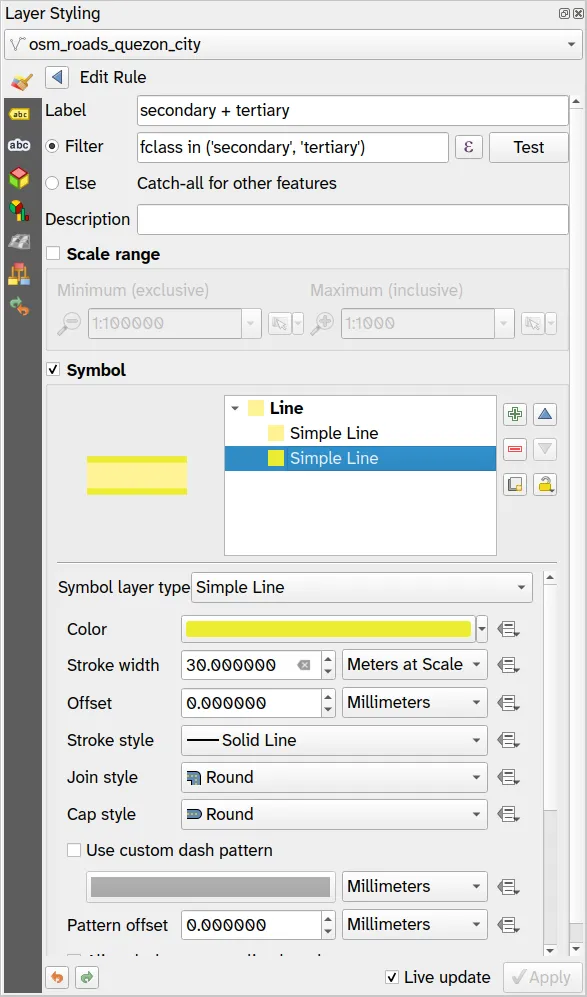
- Secondary and tertiary roads:
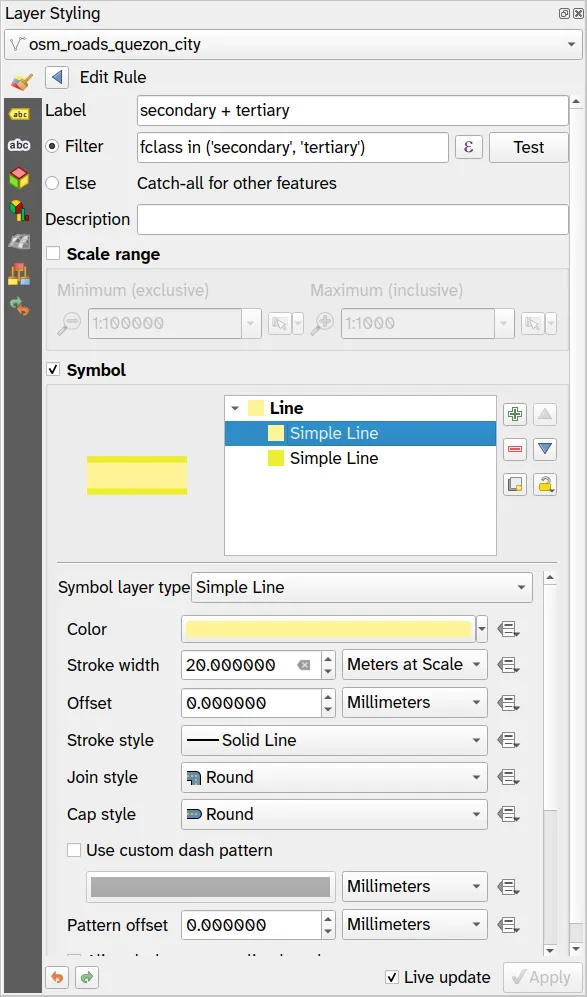
- Label: secondary and tertiary
- Filter:
"fclass" in ('secondary', 'tertiary')
- Symbol:
-
Simple Line (1)
- Color: #fff495
- Stroke width: 20 meters at scale
- Stroke style, Join style, Cap style: Solid line, Round, Round
-
Simple Line (2)
- Color: #ecec32
- Stroke width: 30 meters at scale
- Stroke style, Join style, Cap style: Solid line, Round, Round
-
- Other roads:
- Label: others
- Filter:
Else
- Symbol:
- Simple Line (1)
- Color: #ffffff
- Stroke width: 8 meters at scale
- Stroke style, Join style, Cap style: Solid line, Round, Round
- Simple Line (2)
- Color: #d3d3d3
- Stroke width: 12 meters at scale
- Stroke style, Join style, Cap style: Solid line, Round, Round
- Simple Line (1)
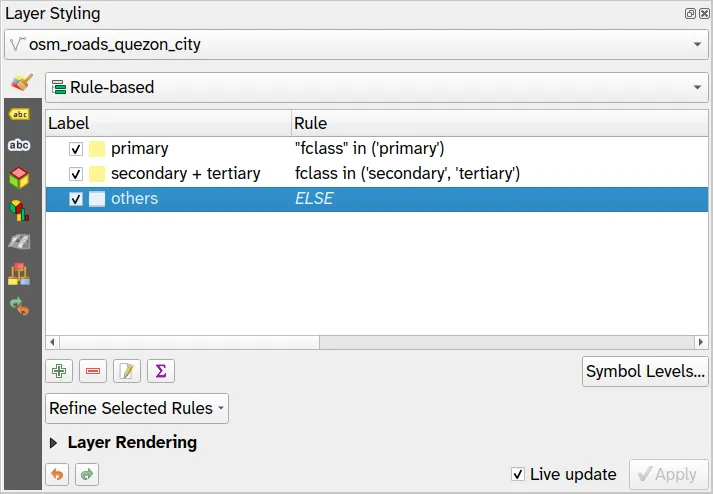
However, if you zoom in to the map, you will notice a bit of an issue.
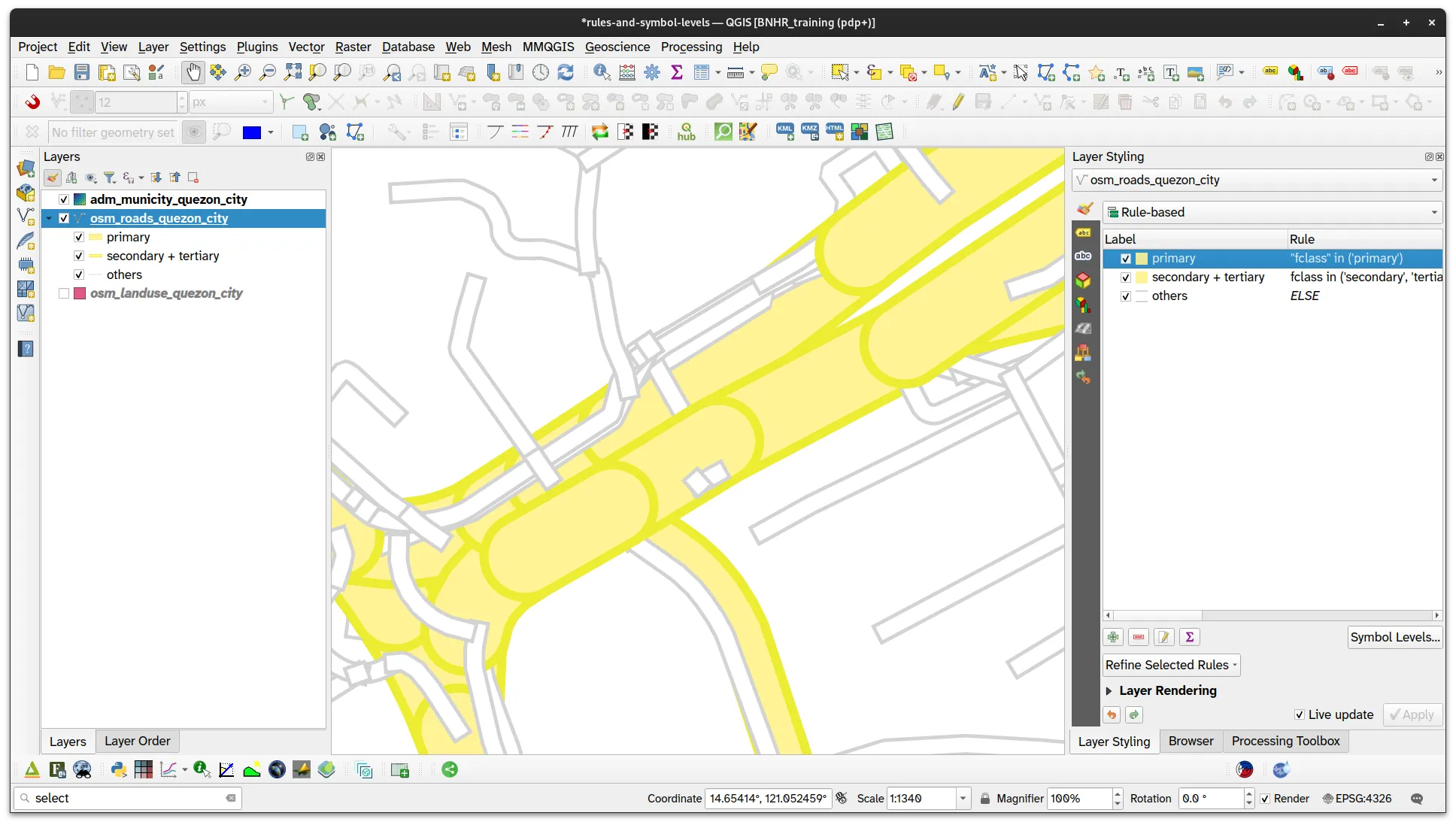
If you look real close, you will notice that the different road feature overlap in a poor way. What you want to do is control the rendering order so that the primary roads are rendered over the secondary and other roads while the secondary roads are rendered over the other roads. To do this, you can use Symbol Levels.
Rendering roads consistently and cleanly using Symbol Levels
Section titled “Rendering roads consistently and cleanly using Symbol Levels”Symbol Levels allow you to define the order in which the symbols are rendered. The numbers assigned to symbol rules define when they will be rendered, that means a lower number is rendered first and a higher number will be rendered on top of it. Using this, you can ensure that the other roads are rendered at the bottom and the primary roads are rendered on top.
- Click Symbol Levels on the Layer Styling panel or the layer Properties of the osm_roads_quezon_city layer.
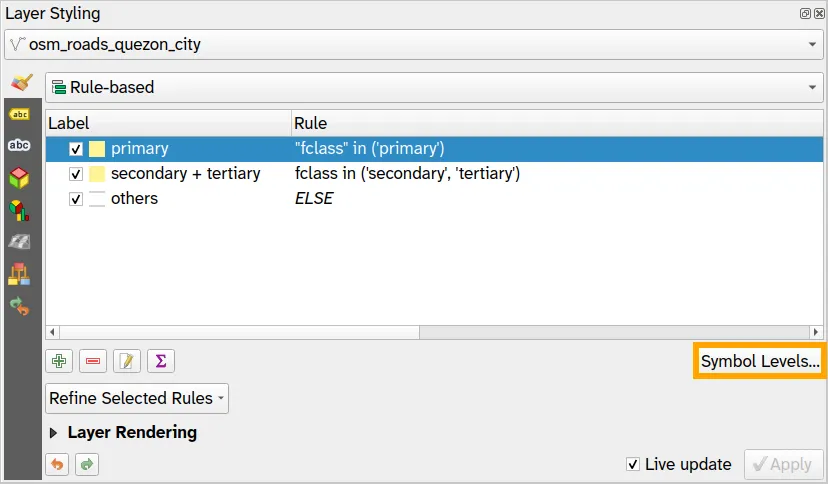
- Update the Symbol Levels for each of the rules. Make sure that the values for primary are the highest while the values for Others are the lowest.
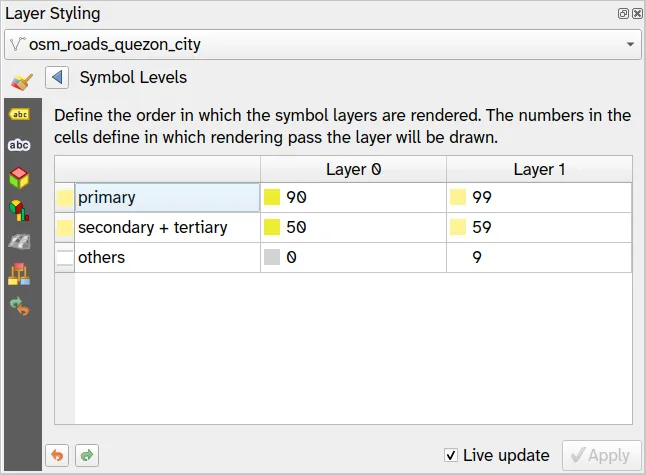
If you notice that your layer or features are overlapping poorly or not rendering in a way that you want, you can use symbol levels to fine-tune and configure which features should appear on top and which ones should appear on the bottom.
- With these symbol level rules applied, your road layer should look like below when zoomed in.
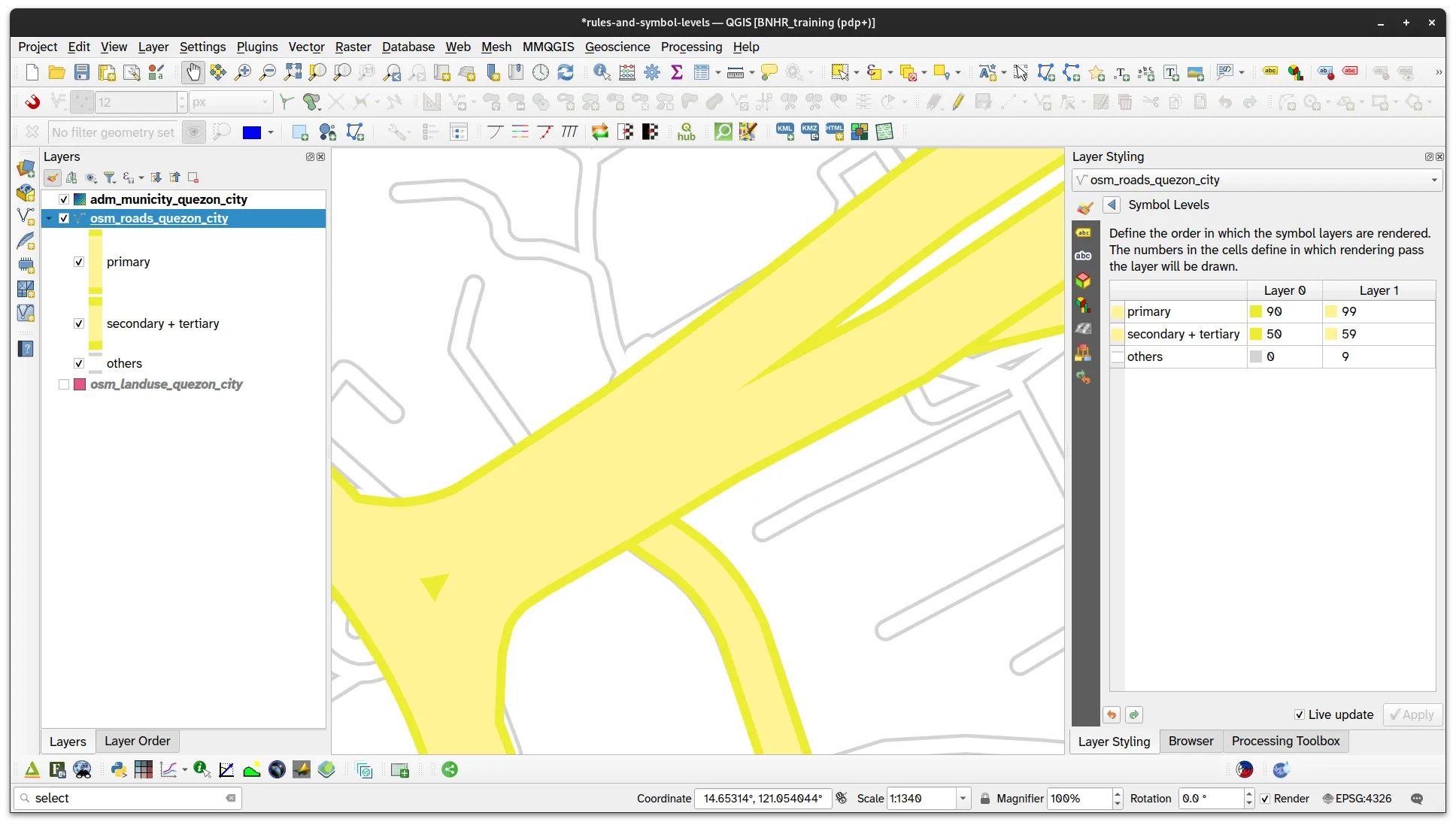
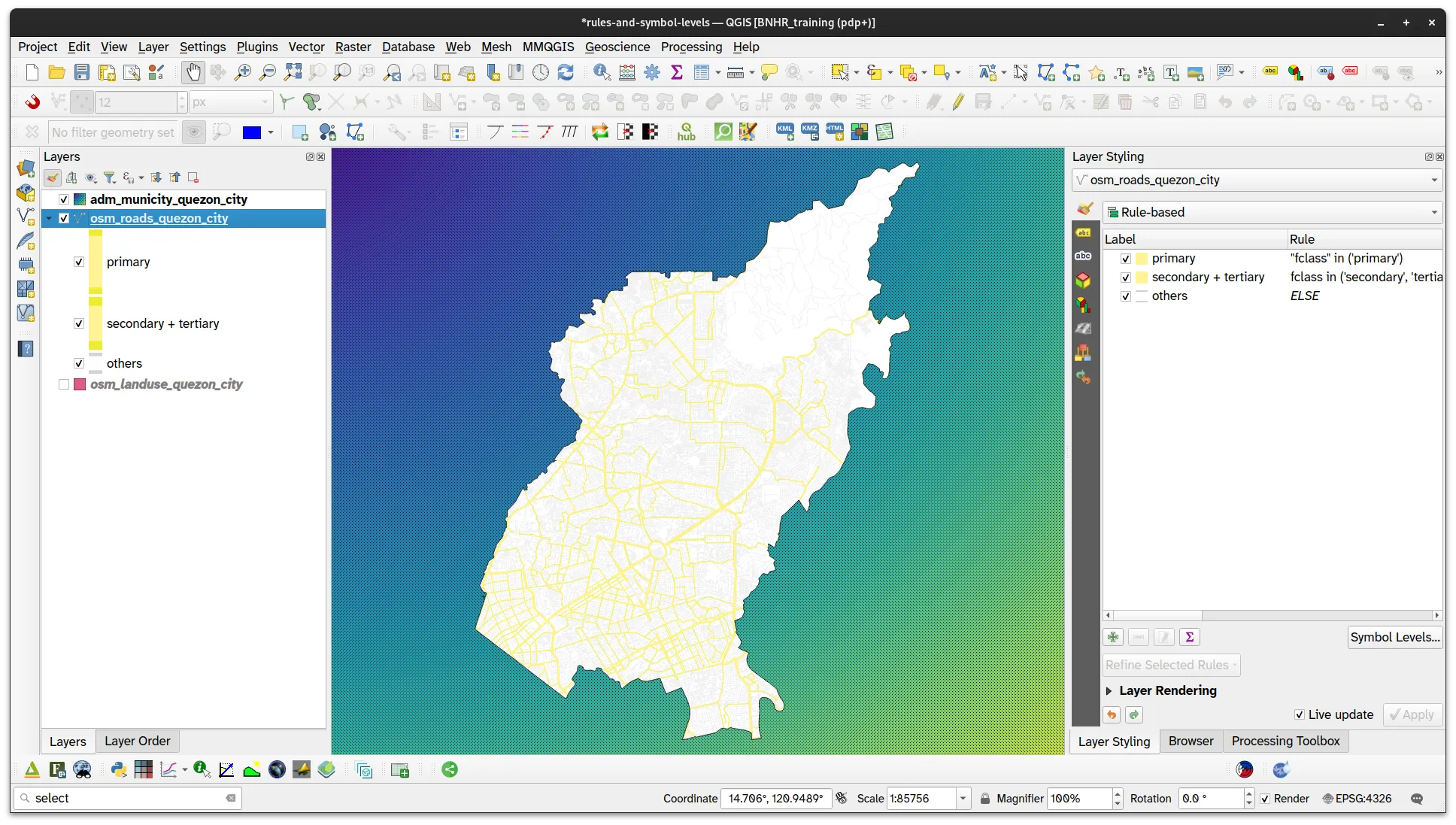
By default, QGIS follows the internal ordering of layer features when rendering them on the Map Canvas. If you are styling a road network consisting of roads at different levels/elevations (e.g. underpass, overpasses/flyovers, tunnels, etc,), this can lead to a visual mess that makes it hard for the map reader to understand the relative positions and relationships between the different road segments.
By assigning different Symbol Levels to different road layers (or even different features within a layer), you can ensure that roads at higher elevations are always drawn on top of roads at lower elevations.
Apply rule-based symbology to the landuse data
Section titled “Apply rule-based symbology to the landuse data”Activate the osm_landuse_quezon_city and notice that there are several land use classes available.
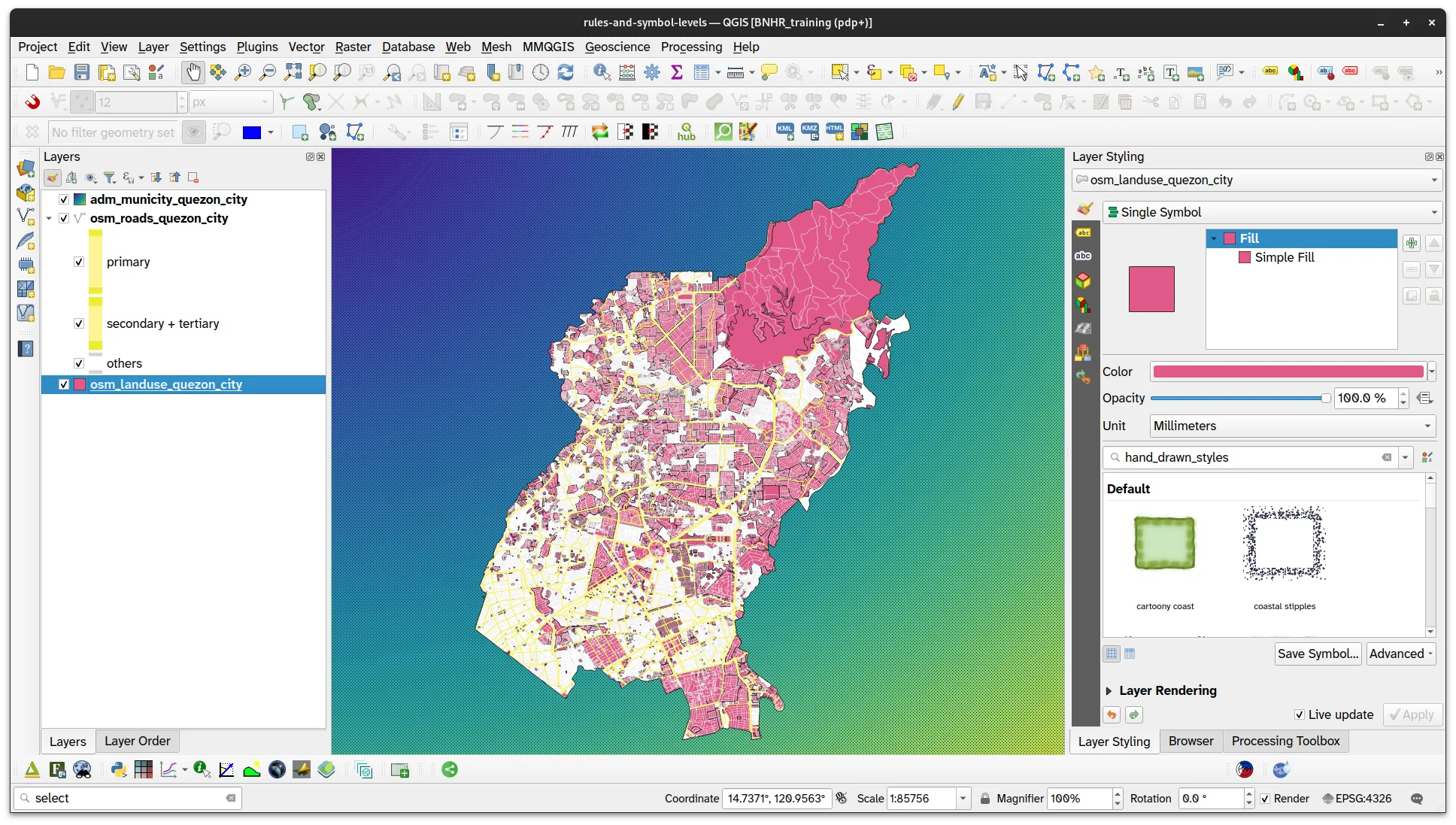
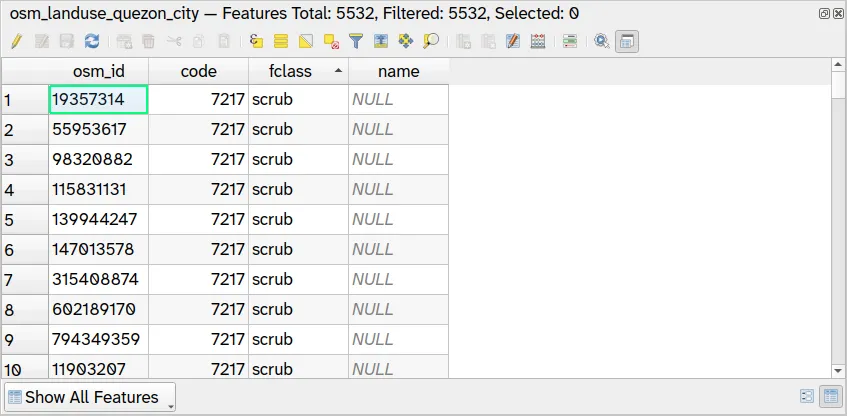
In this case, we want to style only the “green” areas. We can do this by applying a rule-based symbology.
-
Select the osm_landuse_quezon_city layer.
-
Select Rule-based for the symbology type.
-
Add a new rule using the green arrow.
-
Use the following rule:
- Label: green
- Filter:
"fclass" in ('farmland', 'farmyard', 'forest', 'grass', 'meadow', 'nature_reserve', 'orchard', 'park', 'scrub')
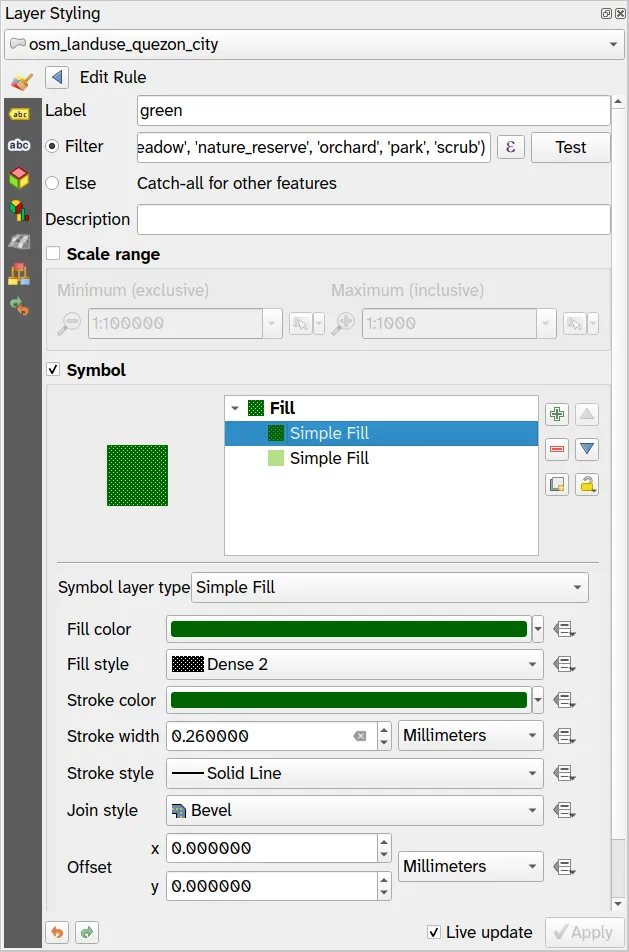
- Add another rule as a catch-all, label it non-green, and style it as below.
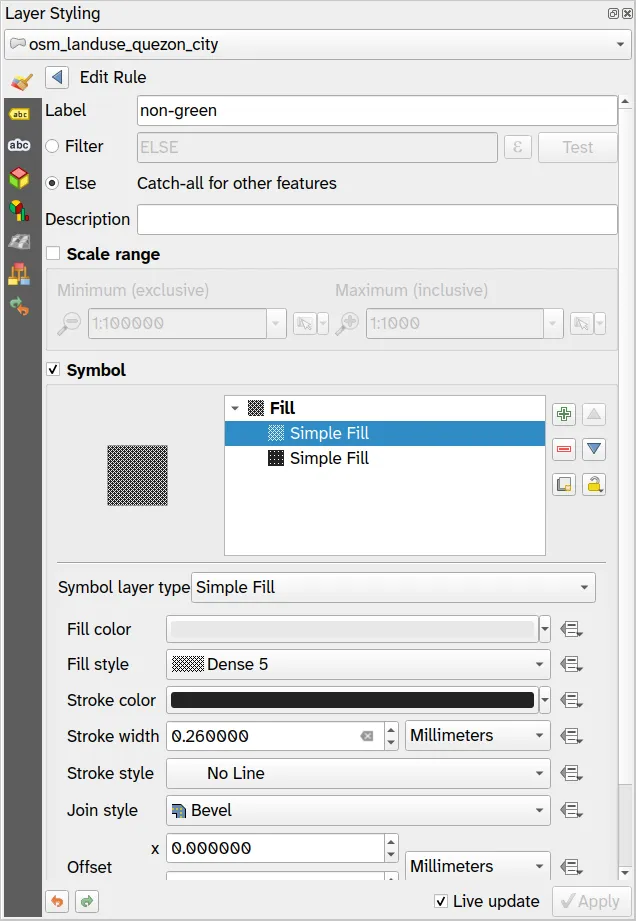
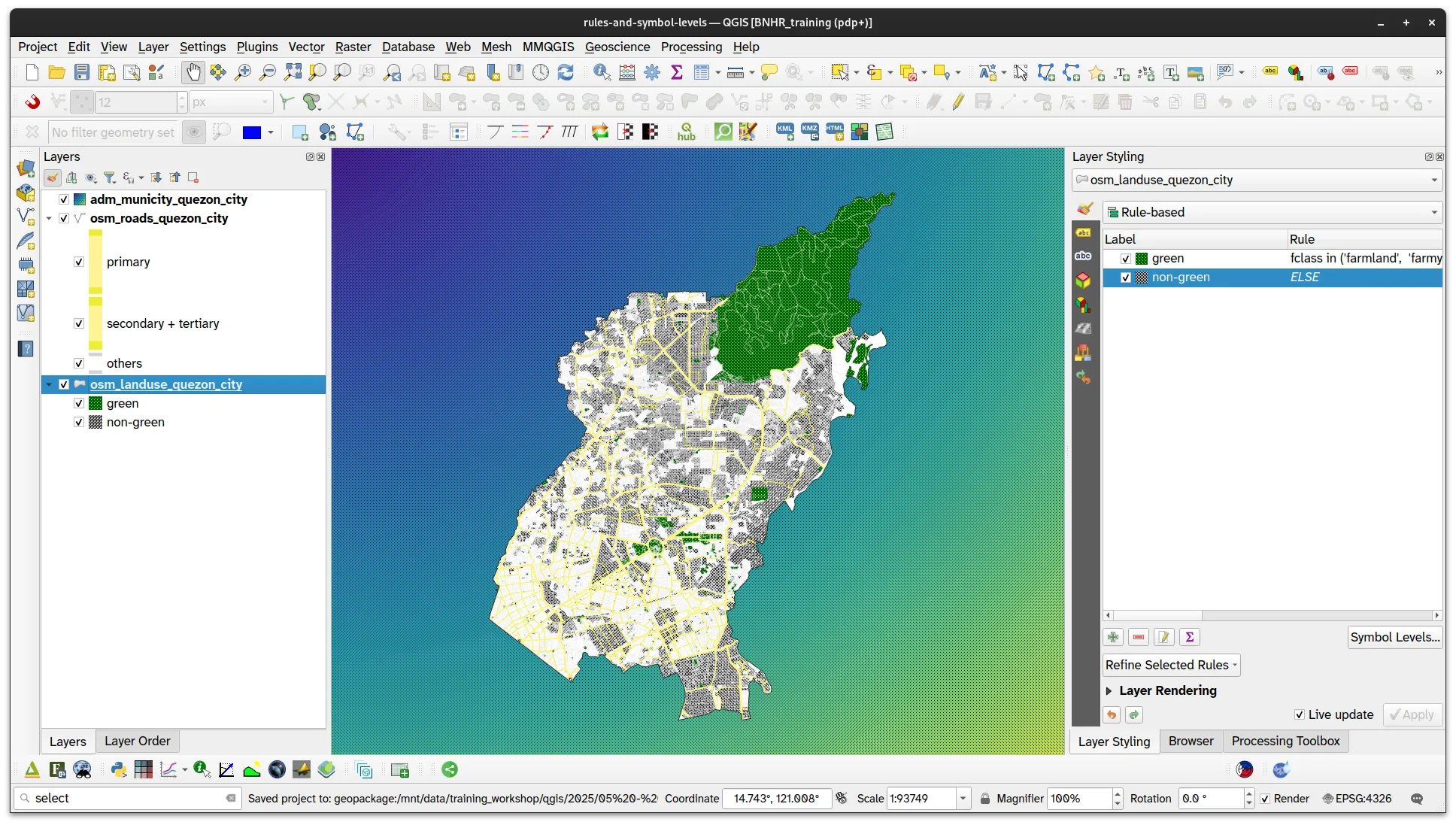
You can combine/refine rule-based symbology with other symbology types (e.g. using categories, ranges, etc.). You can do this using the Refine Selected Rules function.
Aside from using rule-based symbology, you can also apply 1 symbology to multiple landuse values by merging categories when using a Categorized symbology.
Try to do this.
2.2. Showing different features at different zoom levels
Section titled “2.2. Showing different features at different zoom levels”Level: Intermediate
For our training participants, you can load the completed/styled layer by loading the scale-dependent-rendering project found inside bnhr_qgis-architects-planners-urban-002.gpkg.
What we want to achieve
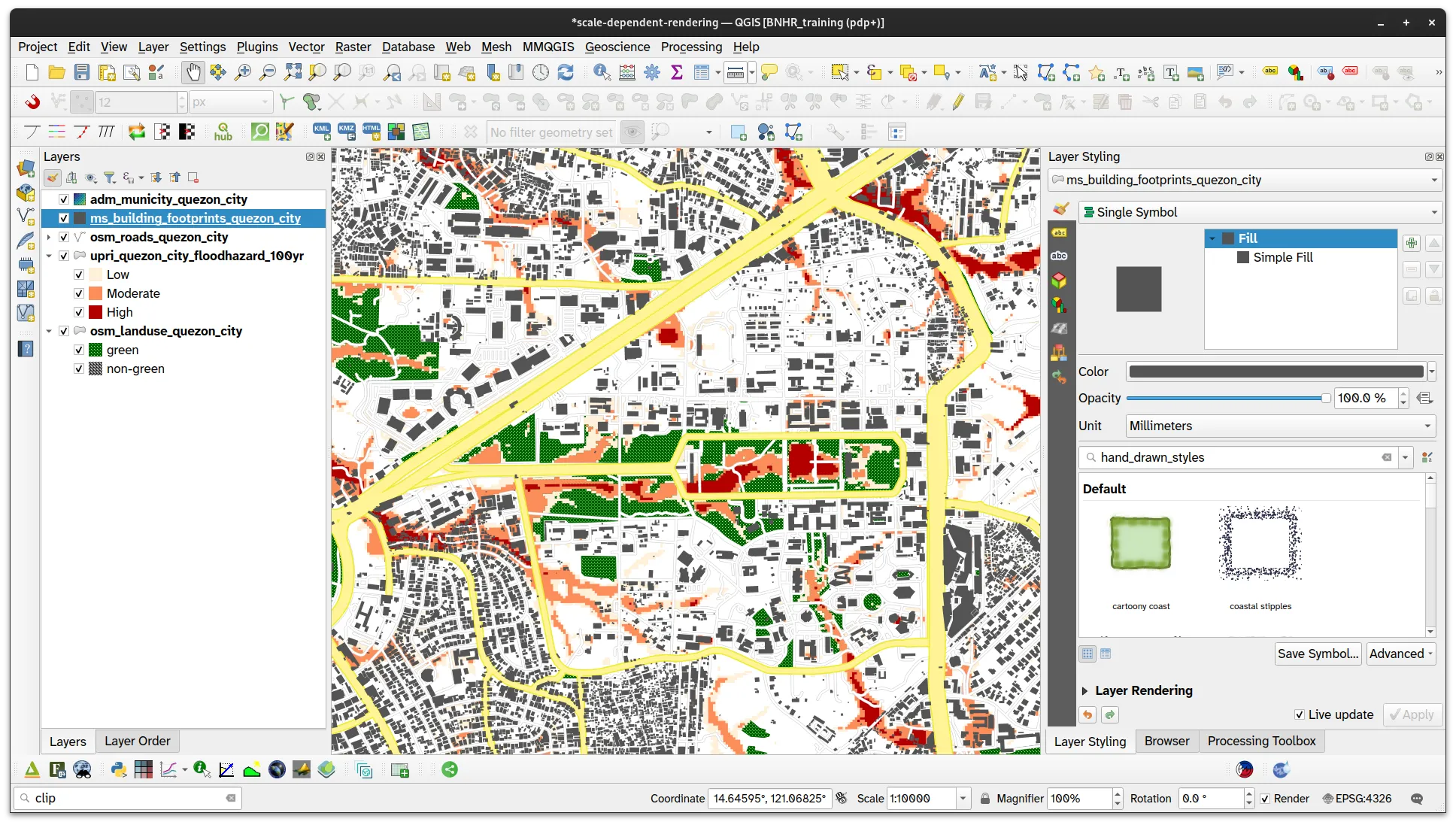
Section titled “What we want to achieve”For this exercise, your goal is to change which features and layers are shown as you zoom in or out of the map. In a way, you will be changing the level of detail in the map depending on the zoom level. For example:
- When zoomed out (e.g. scale < 1:50,000): you only want to see the primary, secondary, and tertiary roads as well as the green areas.
- At middle zoom level (e.g. scale between 1:25,000 and 1:50,000): you want to add the other roads as well as the flood hazard layer.
- When zoomed in (e.g. scale > 1:25,000): you want to show the building footprints (ms_building_footprints_quezon_city) and hide the non-green land use so the buildings stand out.
What we have
Section titled “What we have”- adm_municity_quezon_city
- osm_roads_quezon_city
- osm_landuse_quezon_city
- upri_quezon_city_floodhazard_100yr
- ms_building_footprints_quezon_city
Relevant QGIS knowledge/skills
Section titled “Relevant QGIS knowledge/skills”Scale-dependent visibility
Section titled “Scale-dependent visibility”The trick here is to use Scale Dependent Visibility. In QGIS, you can fine-tune and control the scale range at which layers and features become visible.
- For layers: you can find this in the Rendering tab of the Layer Properties
- For features styled using rule-based symbology: you can specify the minimum scale and maximum scale in the style settings.
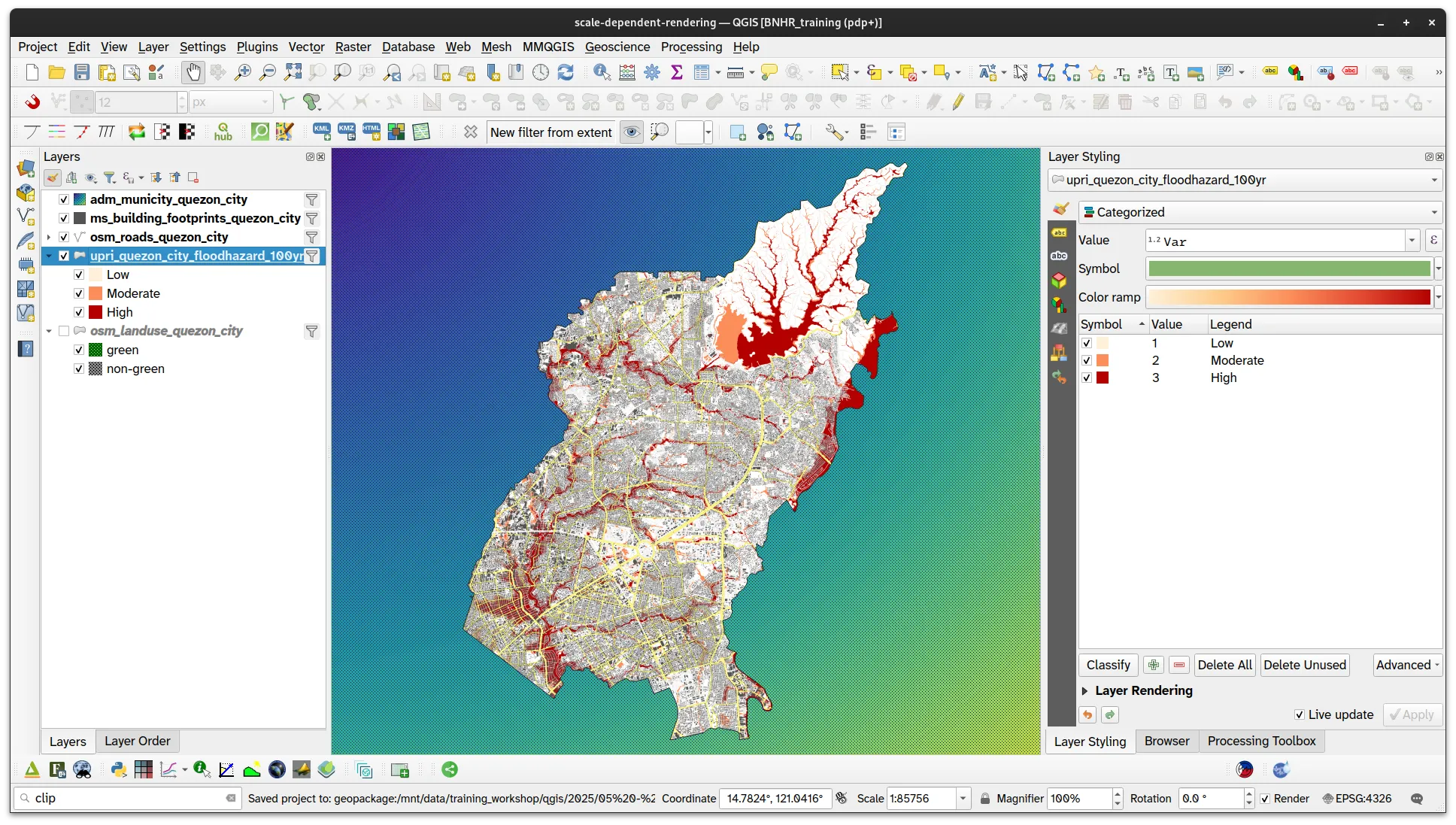
- Load the upri_quezon_city_floodhazard_100yr and ms_building_footprints_quezon_city layers and style them accordingly.
-
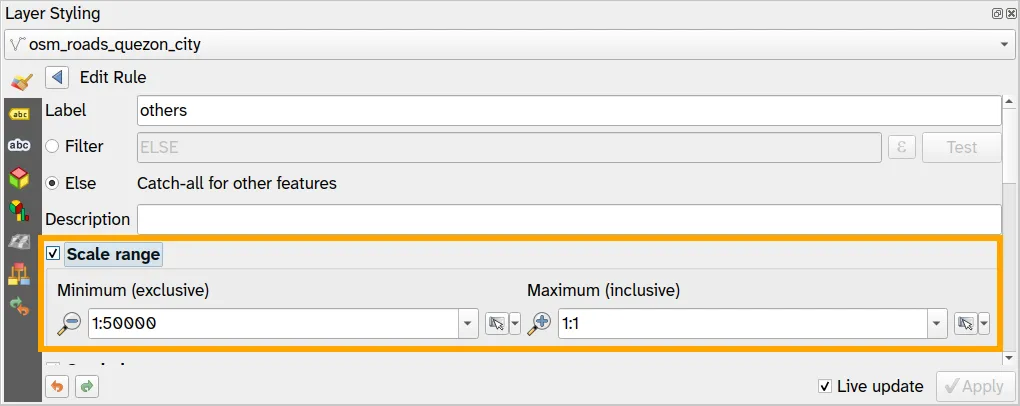
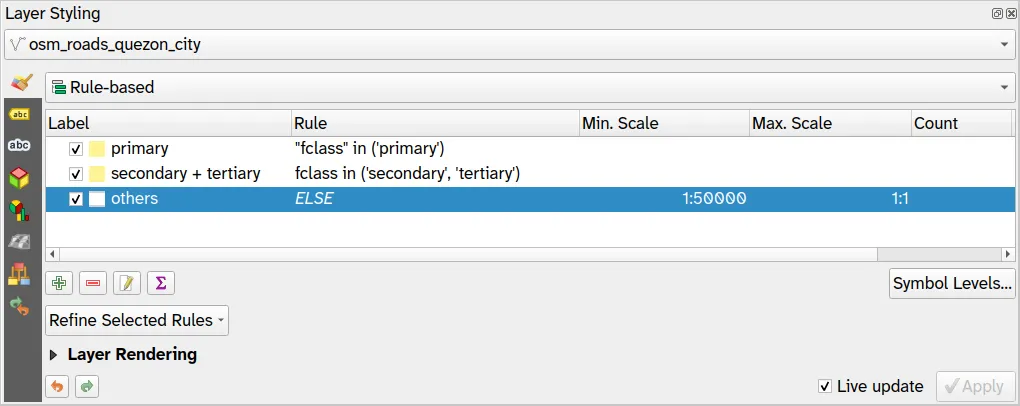
For osm_roads_quezon_city, set the following parameters for the others rule:
- Min. Scale:
1:50000 - Max. Scale:
1:1
Don’t forget to apply your changes.
- Min. Scale:
- Do the same for the non-green rule in osm_landuse_quezon_city but with the following parameters:
- Min. Scale:
1:10000000 - Max. Scale:
1:25000
- Min. Scale:
What do the Min Scale and Max Scale values mean for the osm_roads_quezon_city and osm_landuse_quezon_city layers?
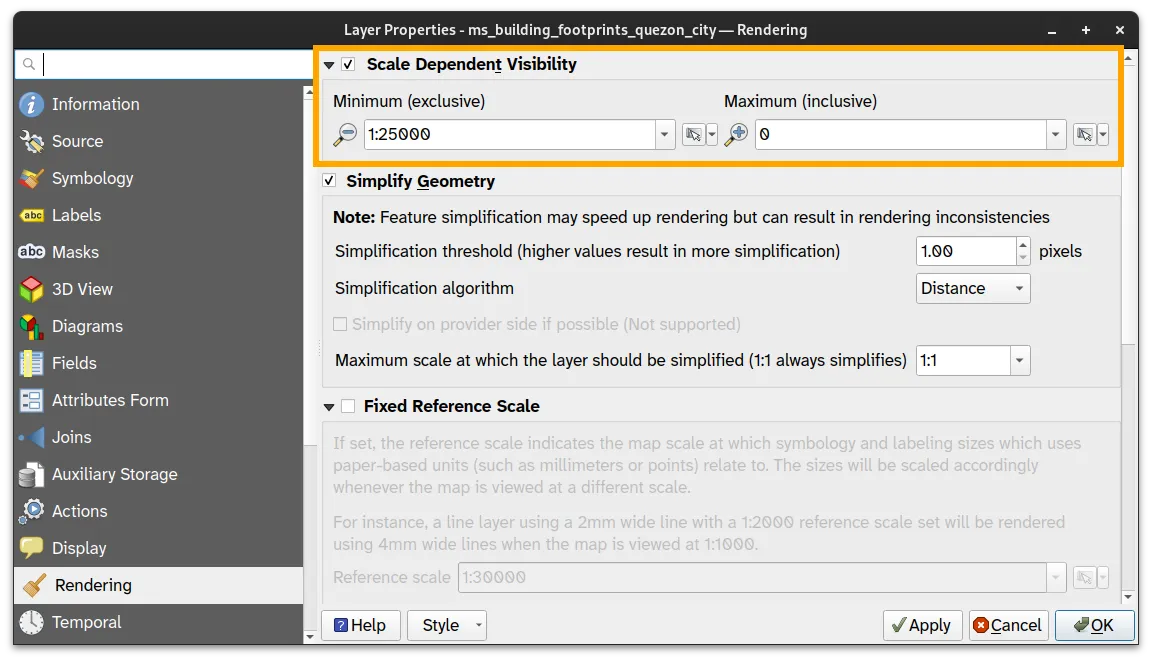
- For upri_quezon_city_floodhazard_100yr, open its Layer Properties and go to the Rendering tab. Check the Scale Dependent Visibility and put
1:50,000as the Minimum.
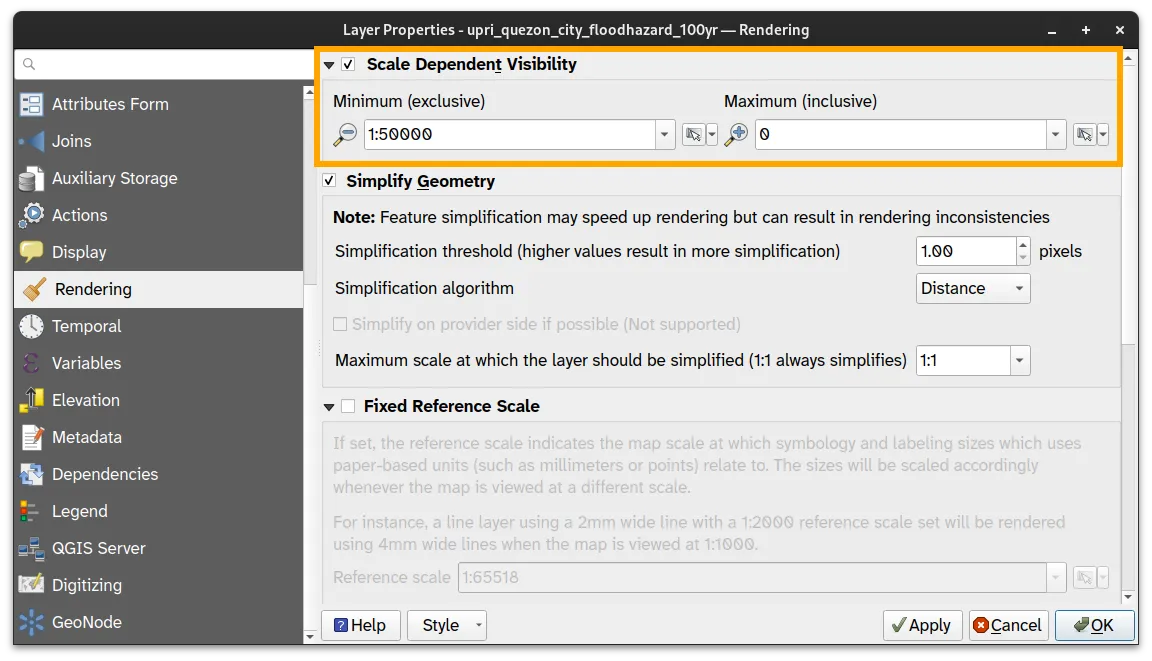
- Look at your map canvas. You should notice that when you are zoomed out (or when the scale is less than 1:50,000), the other roads and the flood hazard are not visible and when you zoom in (or once the scale is greater than 1:50,000) they appear.
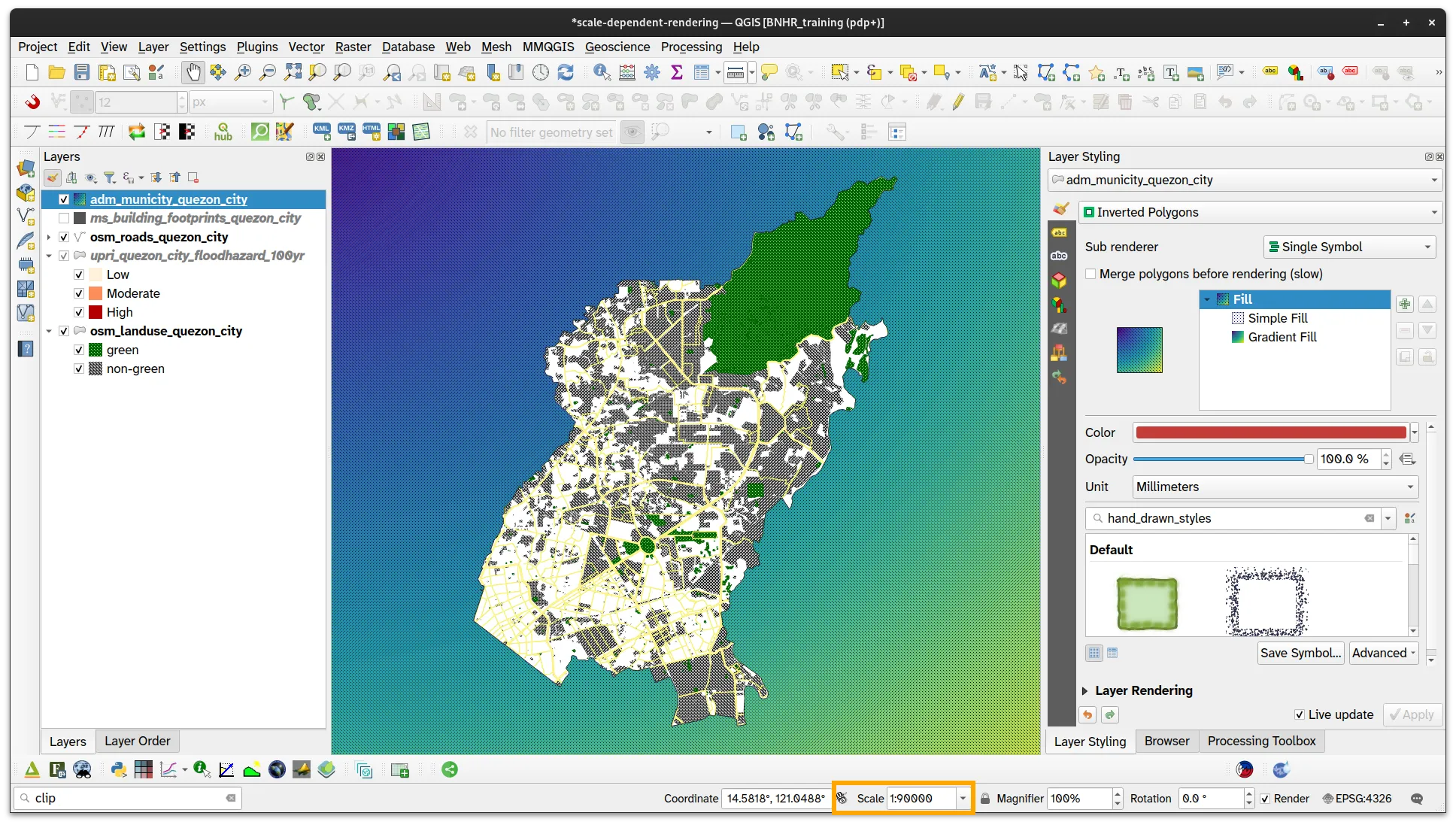
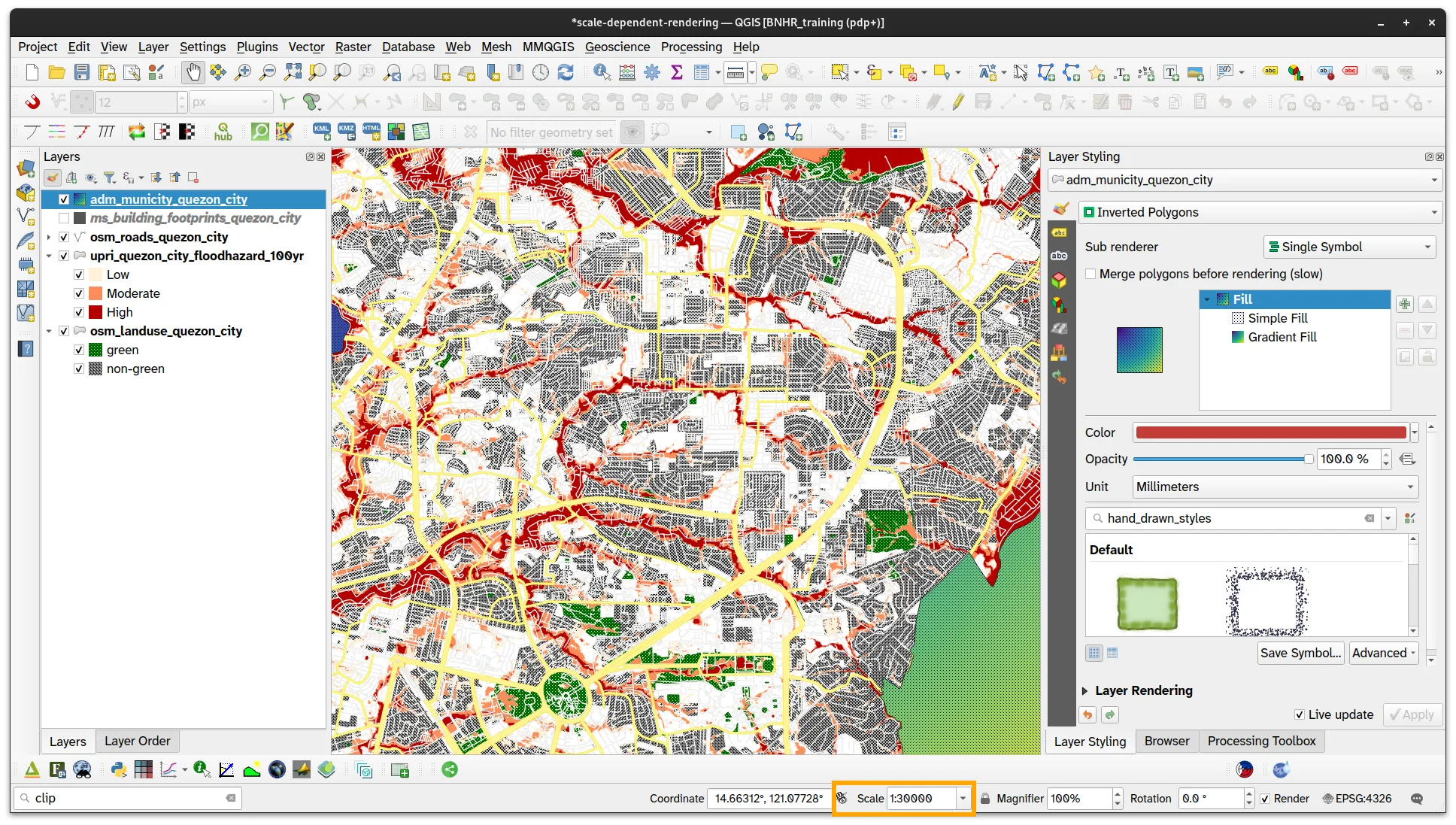
- For ms_building_footprints_quezon_city, do the same thing that you did for upri_quezon_city_floodhazard_100yr but put the Minimum to
1:25,000.
Take a look at your map canvas again, this time the building data should only appear when the scale is greater than 1:25,000.